Home / Dashboard
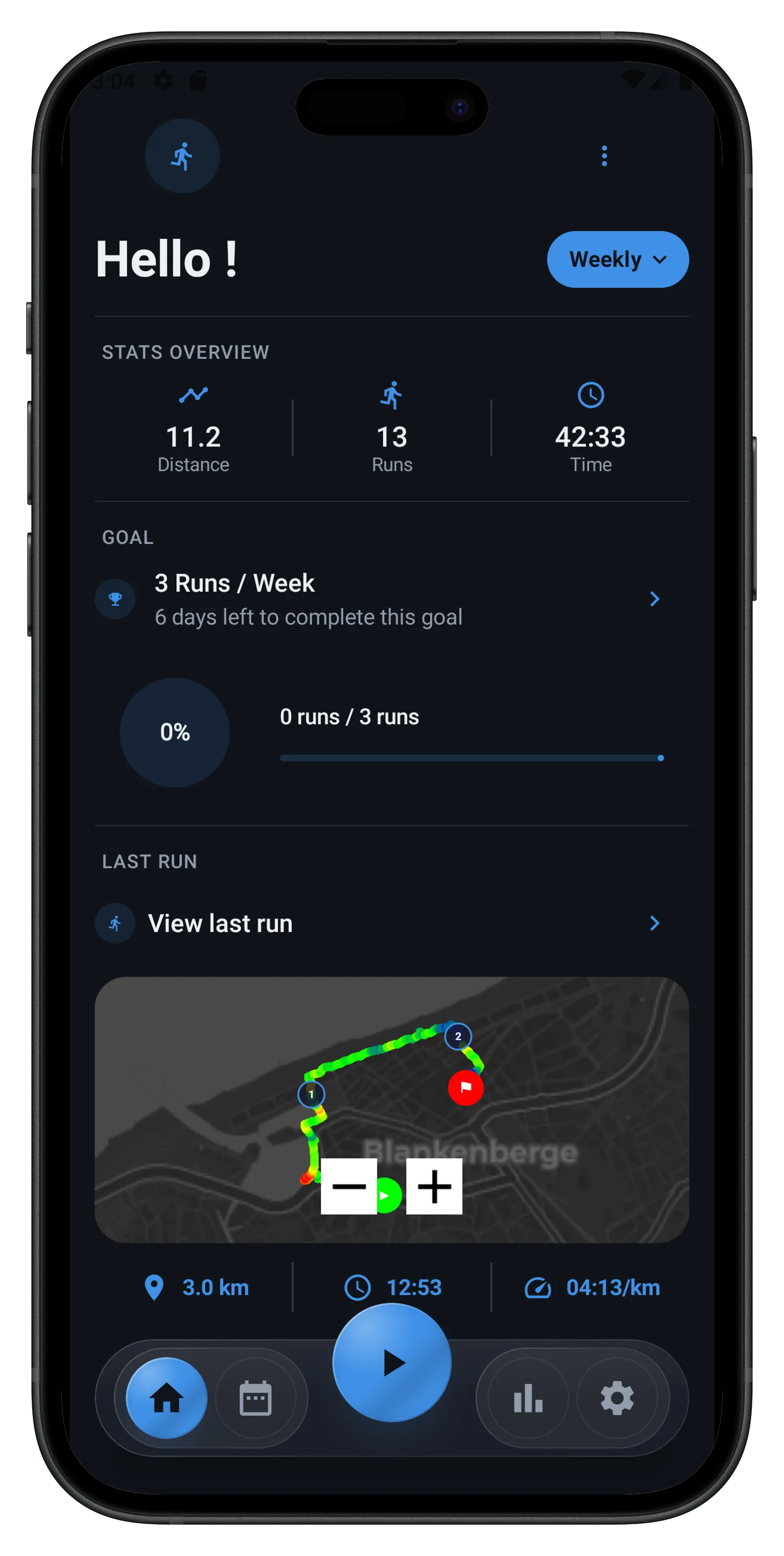
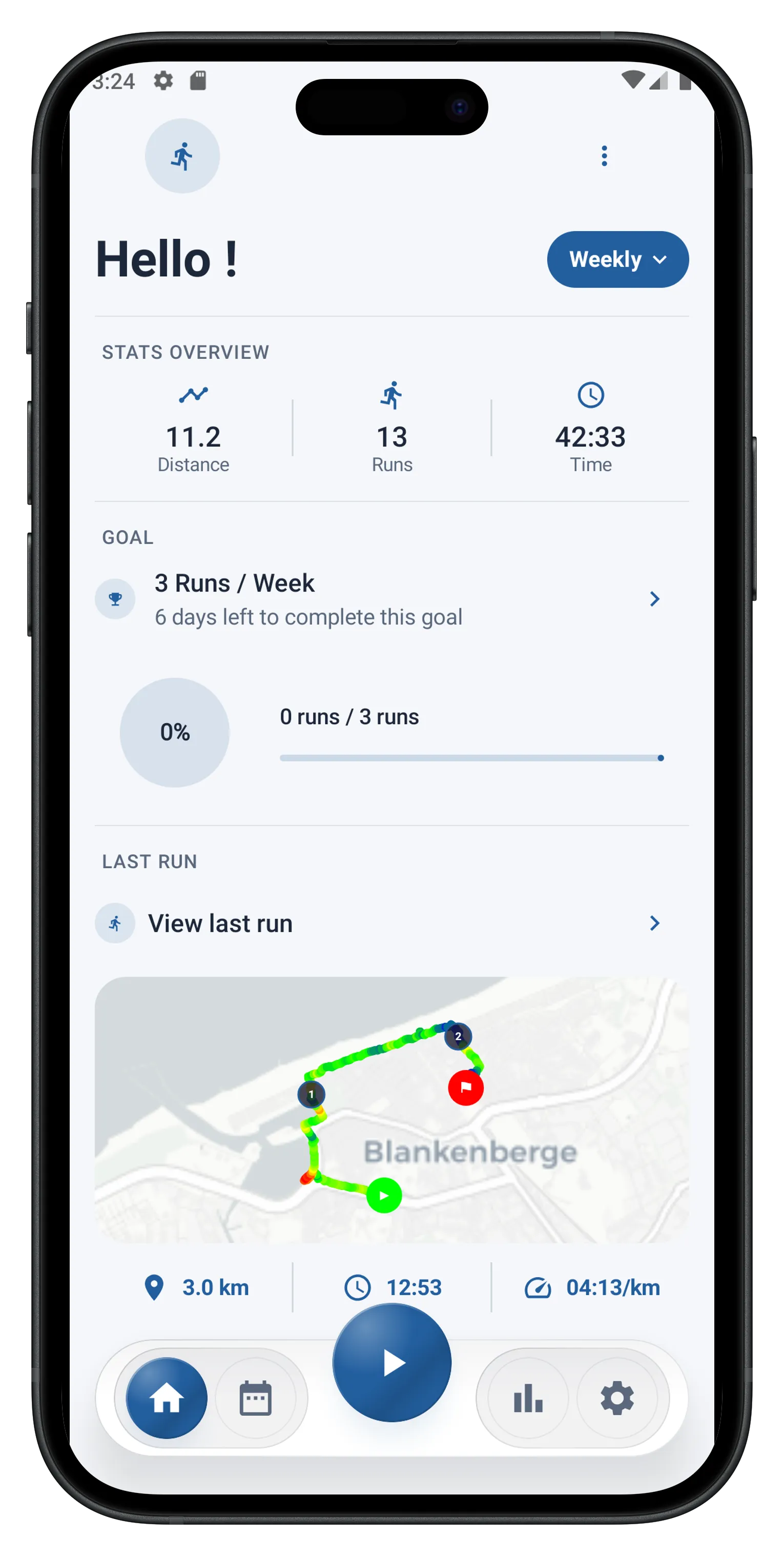
The home screen is the entry point of the app. It gives you an at-a-glance view of your running activity.
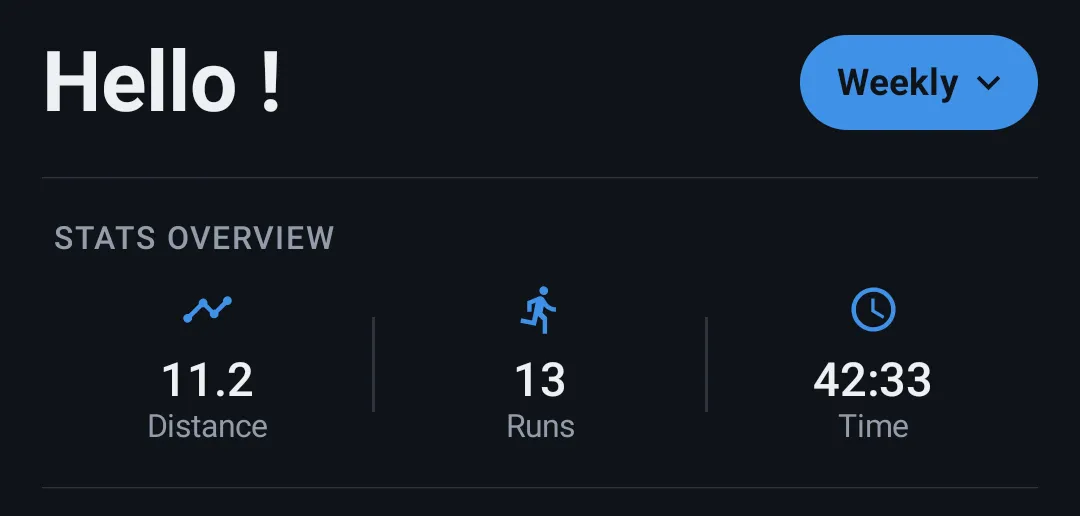
Stats overview
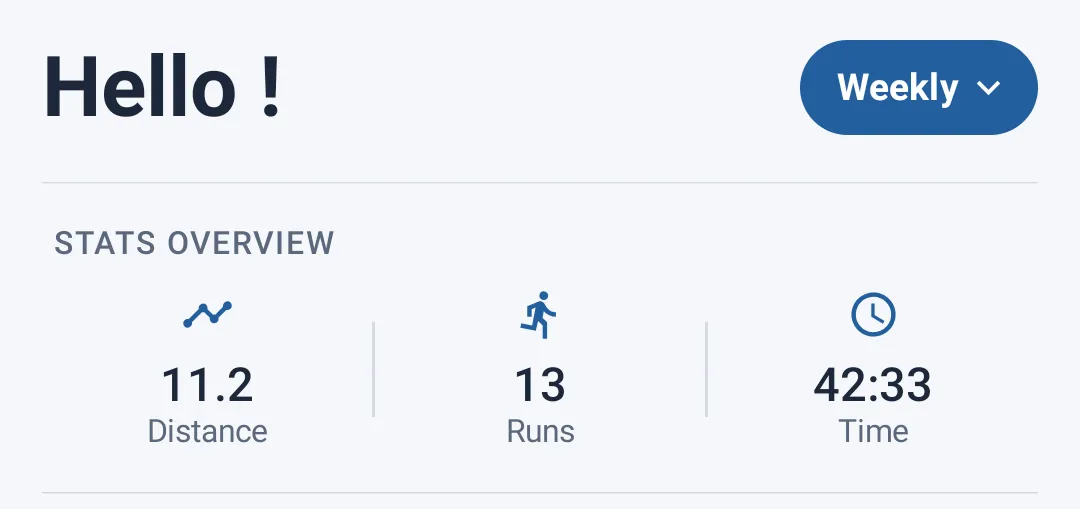
Three cards at the top show your key numbers:
- Distance — total distance covered
- Runs — number of runs completed
- Time — total time spent running
You can change the displayed period (week, month, etc.) using the selector just above these cards — all stats update automatically for the chosen period.
Current goal
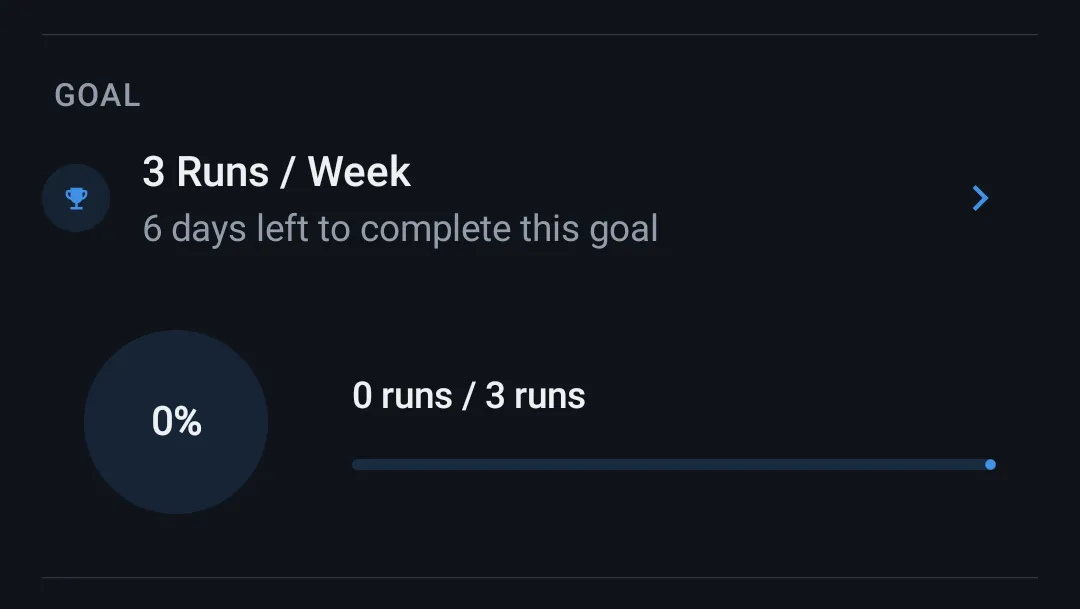
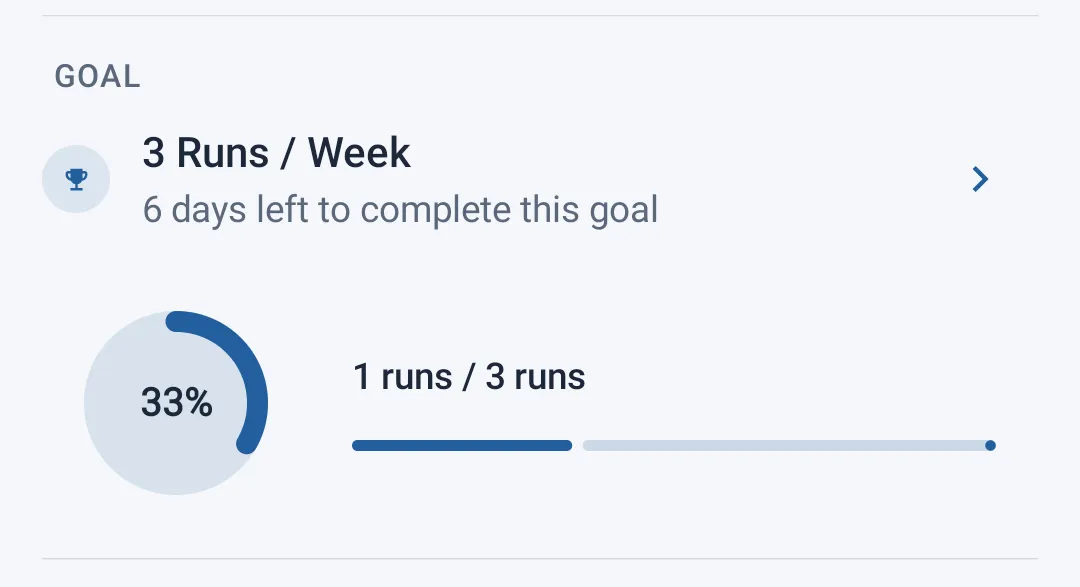
Just below, a card presents your active goal:
- The goal's name and the number of days left to complete it
- A progress circle showing your completion percentage
- The exact figures (e.g. distance covered / target distance)
If you haven't set a goal yet, this card invites you to pick one. Tapping the arrow on the right of the card takes you to the full list of your goals, where you can also start a new one.
Last run
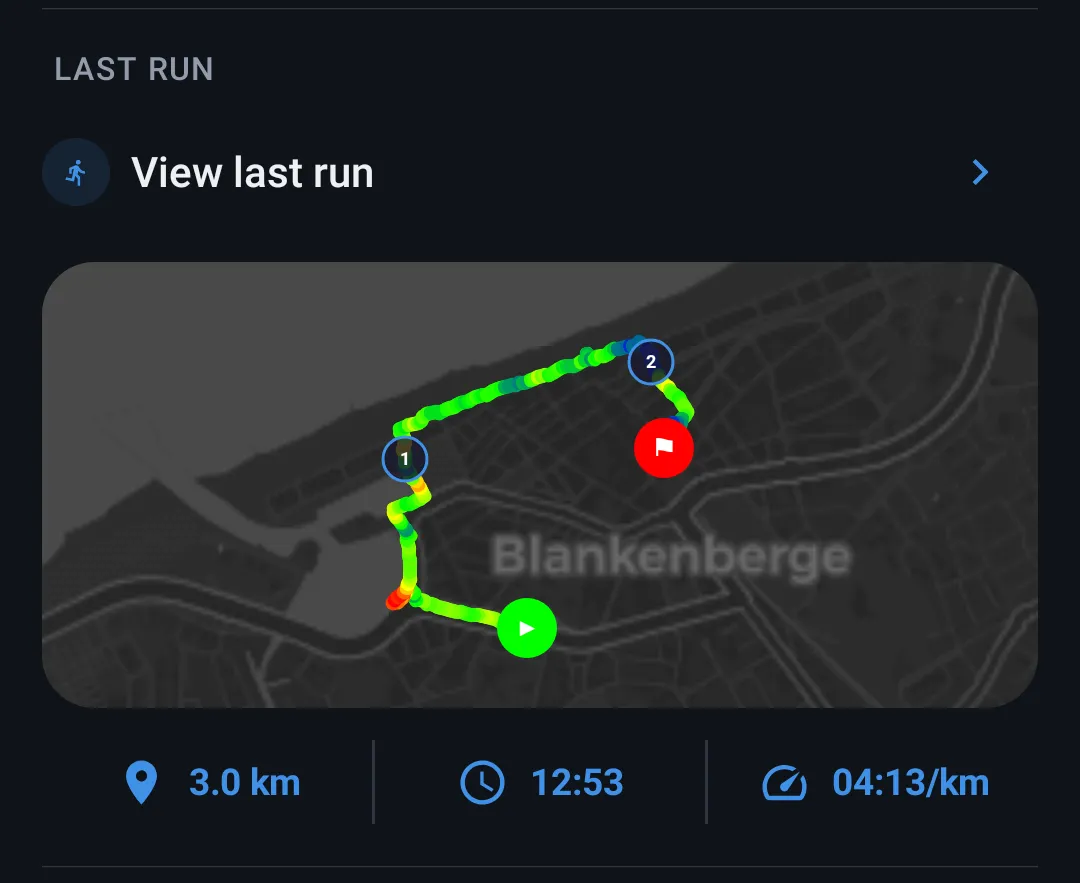
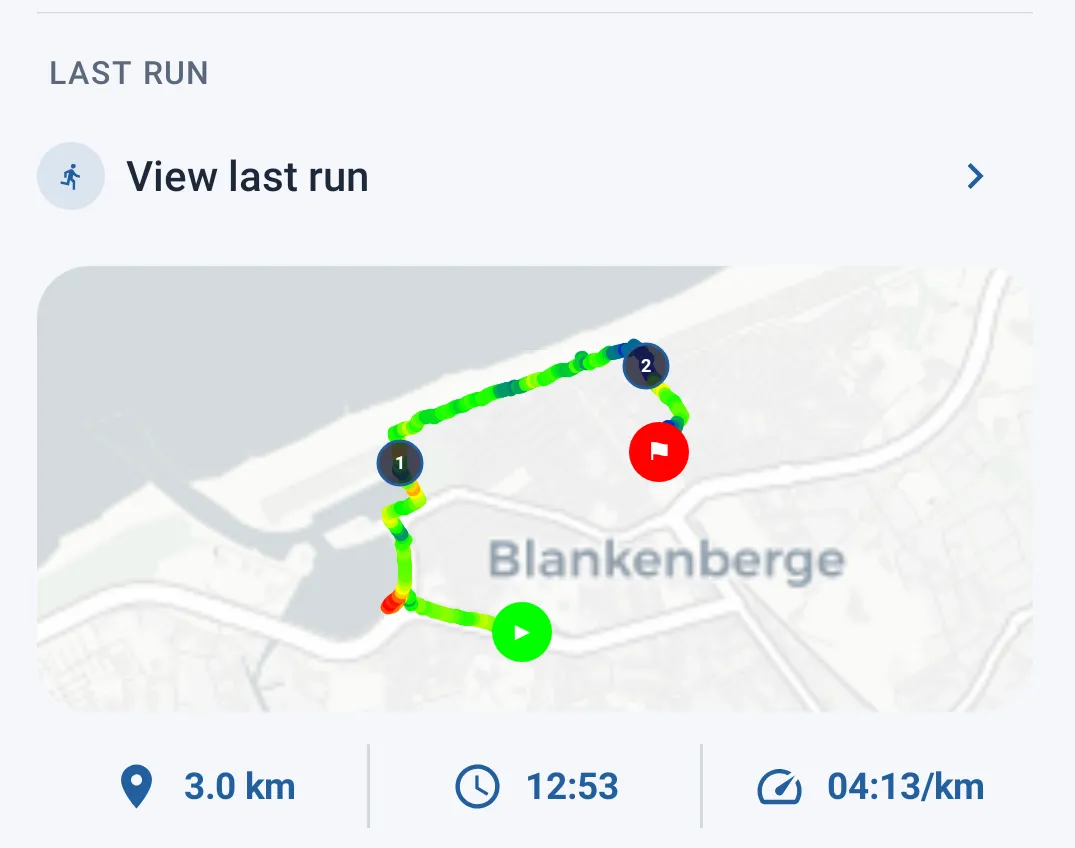
This card highlights your most recent run, with a preview of the route on the map. Tapping it opens the full detail sheet for that run (complete stats, route, pace per kilometer...).
If you haven't recorded any run yet, a message invites you to start your first one.
Weekly chart
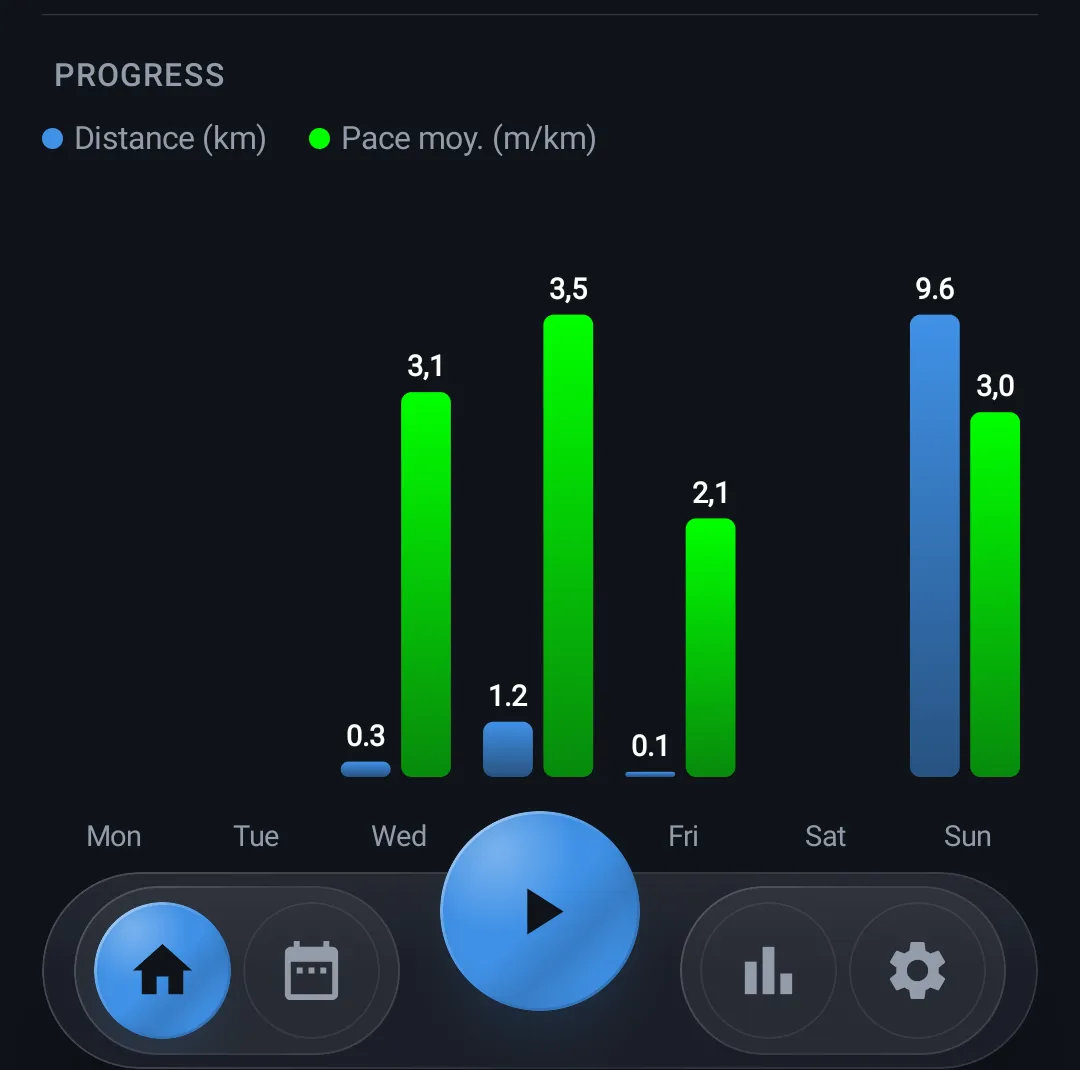
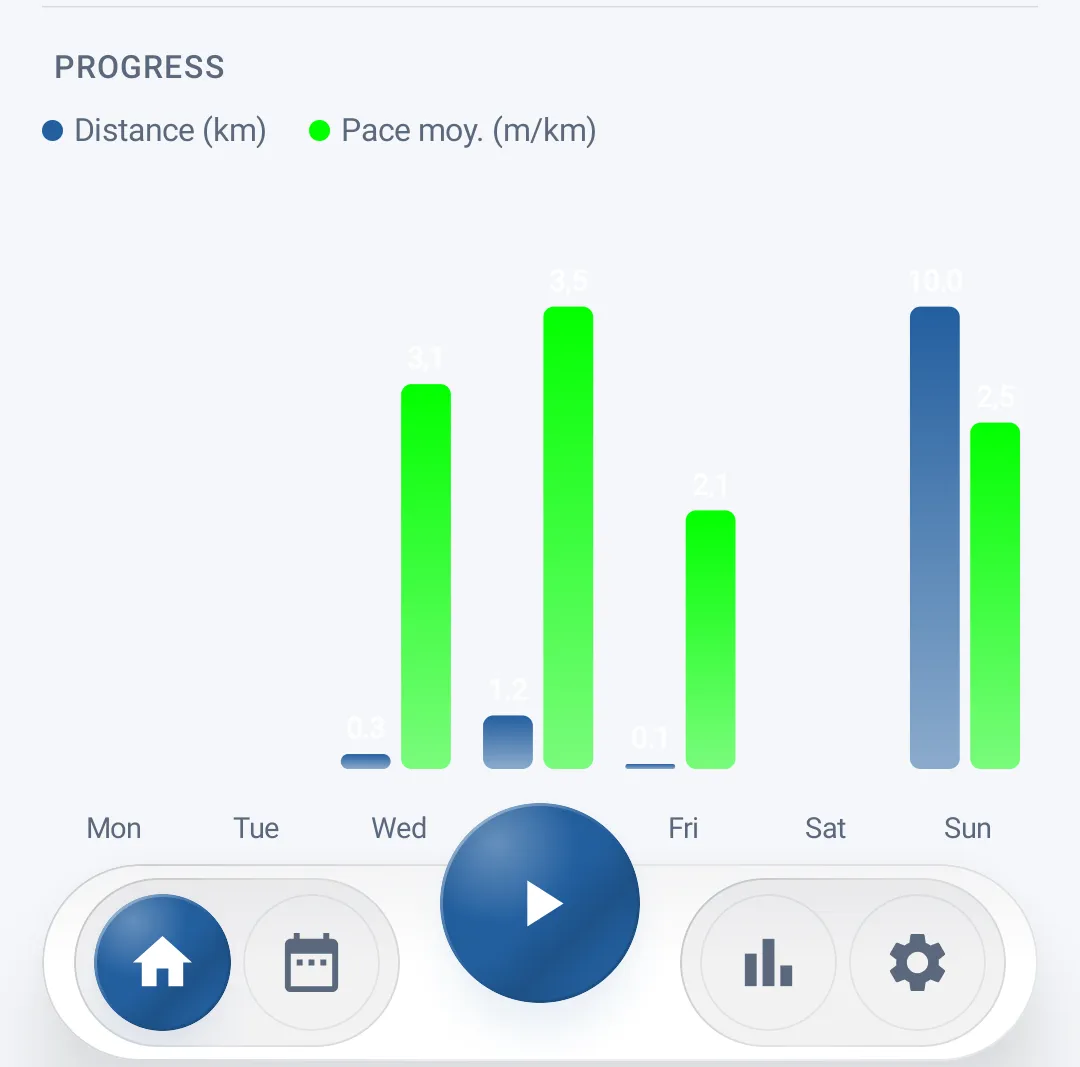
A chart compares two indicators, day by day, over the current week:
- Distance covered (blue)
- Average pace (green)
This lets you quickly visualize your training consistency over the last 7 days. Exact values are displayed above each bar.
Automatic notifications
Depending on your situation, the app may show alerts when the home screen loads:
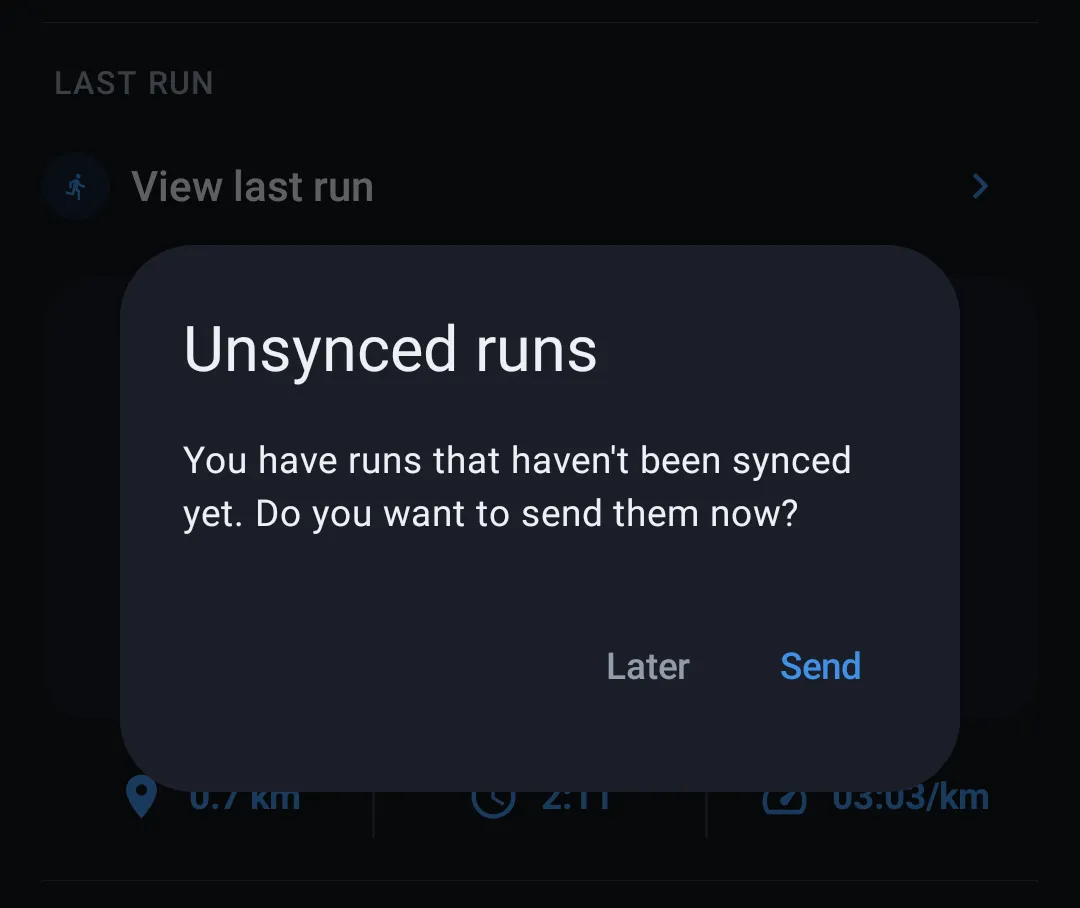
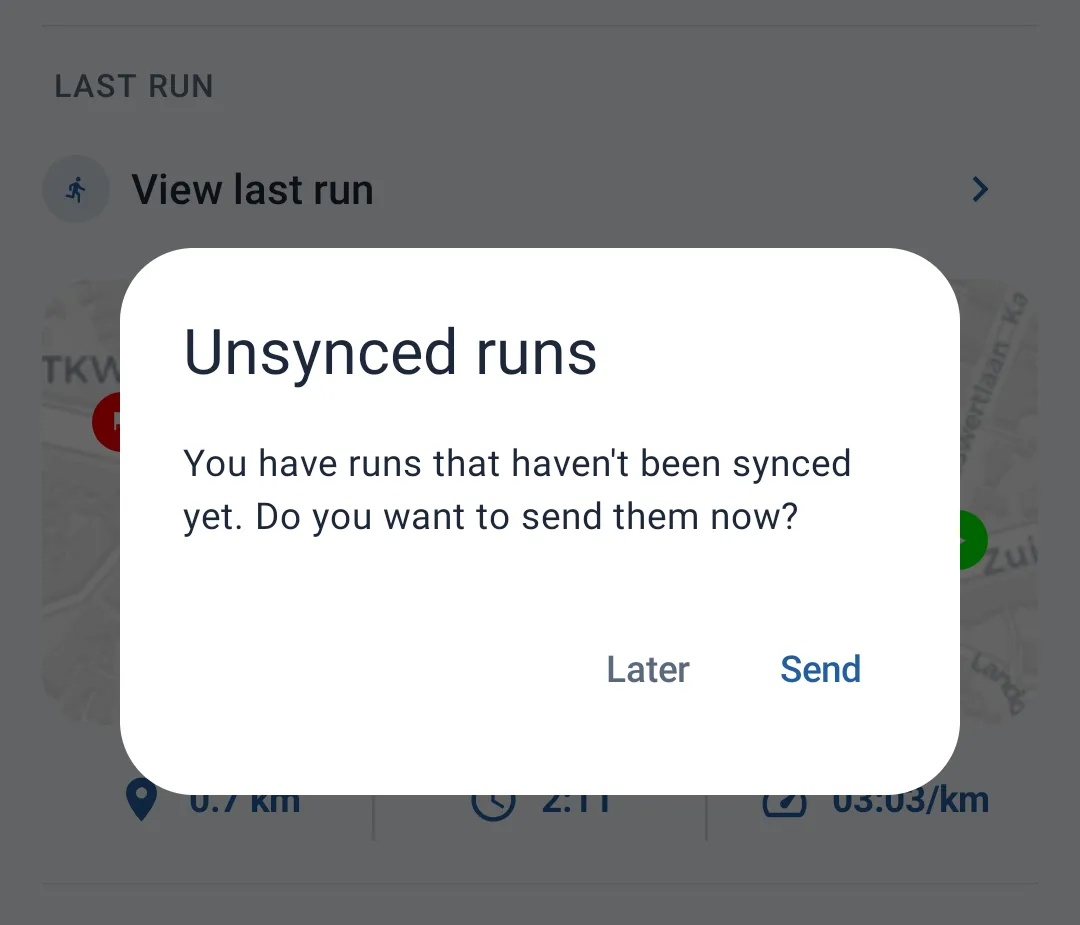
- Unsynced runs — if you follow a plan With Coach and some results haven't been sent yet, the app offers to send them
- Training plan updated — if your coach has changed your plan, you're notified and can choose to load the new version or keep the old one
- Send failure — if sending your results fails, a message lets you know and invites you to try again later