History
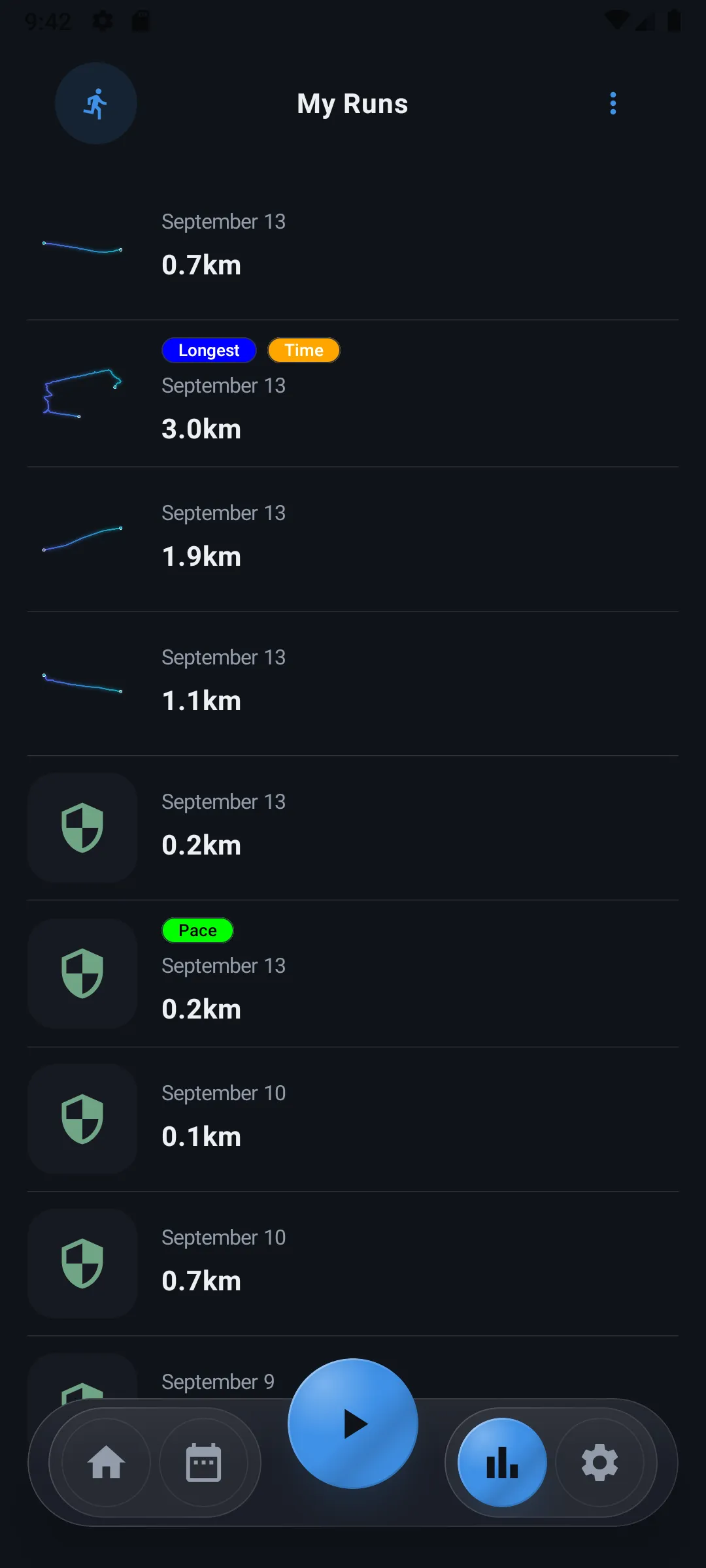
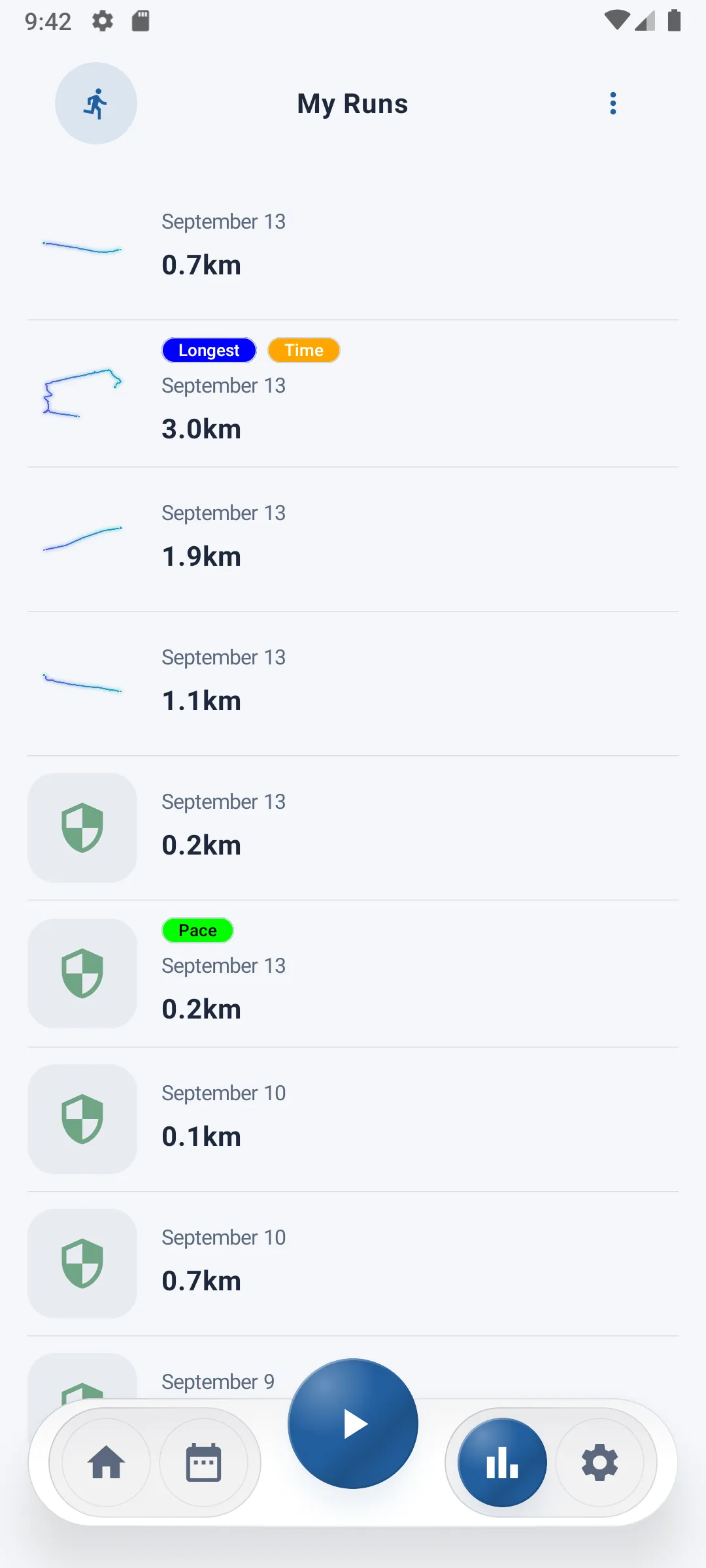
The History screen groups all your past runs as cards, letting you view each run in detail, share it, or delete it.
List of runs
Each run appears as a card showing:
- A preview of the route covered (if No Track mode wasn't active)
- The run's date
- The distance covered
If no run has been recorded yet, a message tells you so.
Performance badges
Some cards show one or more badges highlighting your best performances across all your runs:
| Badge | Meaning |
|---|---|
| Longest | The run with the longest distance covered |
| Pace | The run with the best average pace |
| Time | The run with the longest duration |
These badges are automatically recalculated with every new run.
Run detail sheet
Tapping a card opens the run's detail sheet, organized into two tabs.
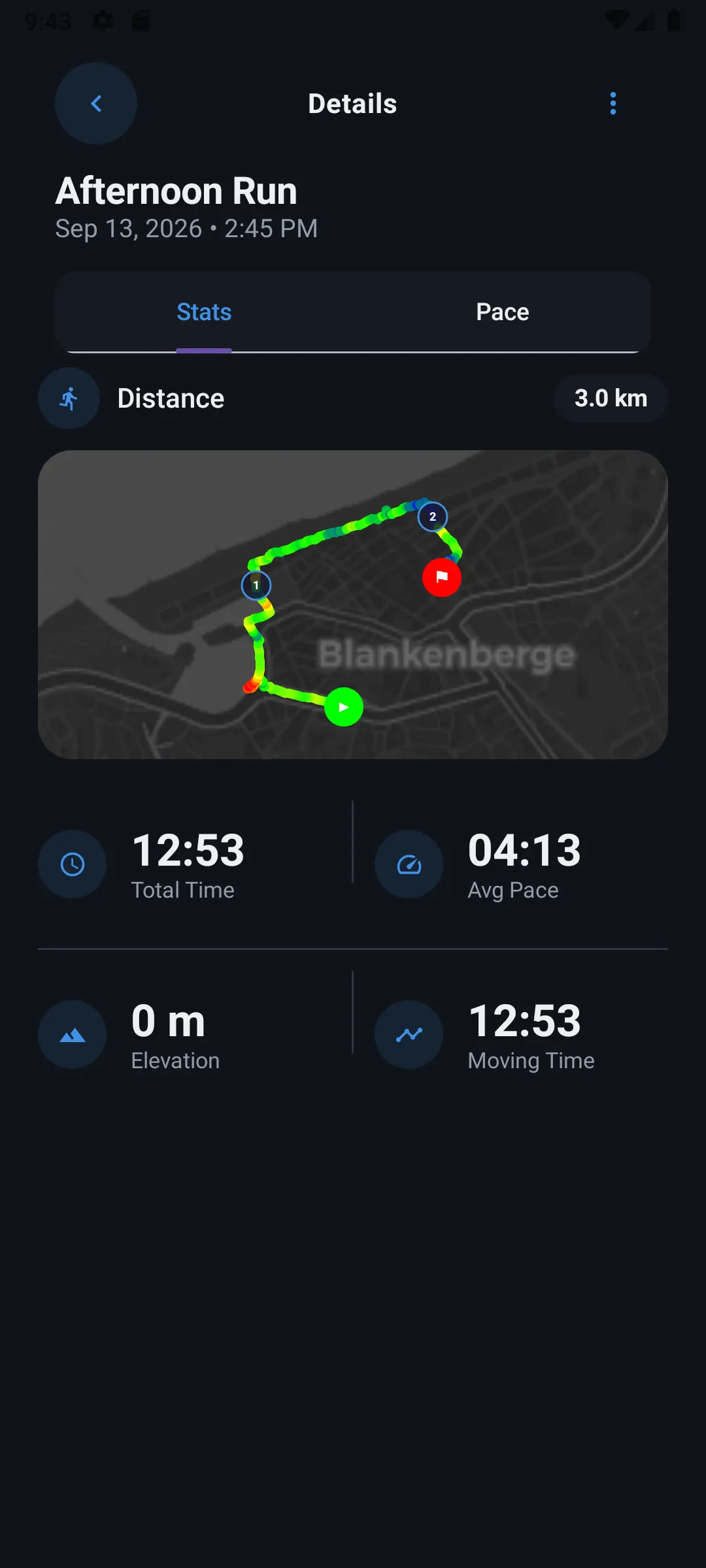
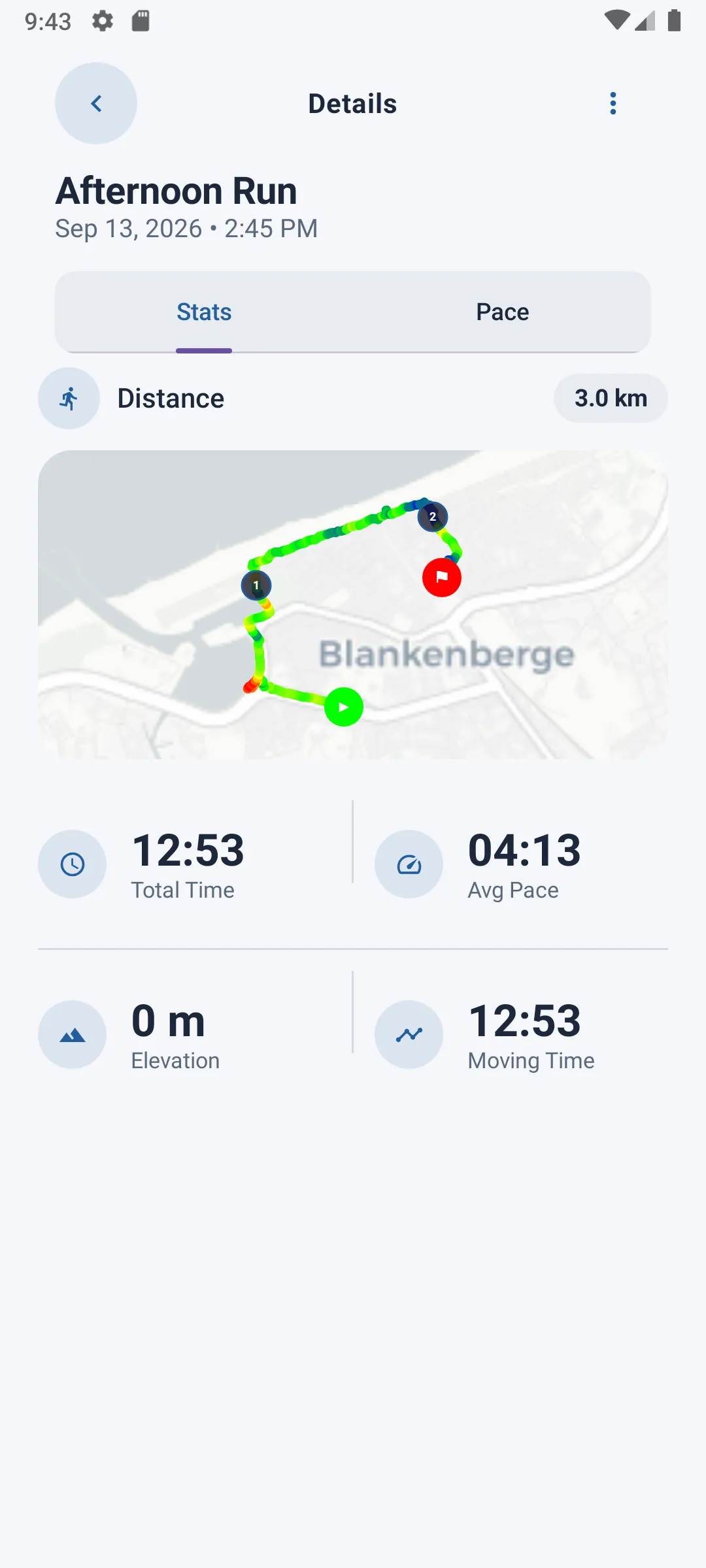
Stats tab
- Total distance
- Total time (including pauses)
- Moving time
- Average pace
- Elevation gain
- Map preview with the route (if available)
Pace tab
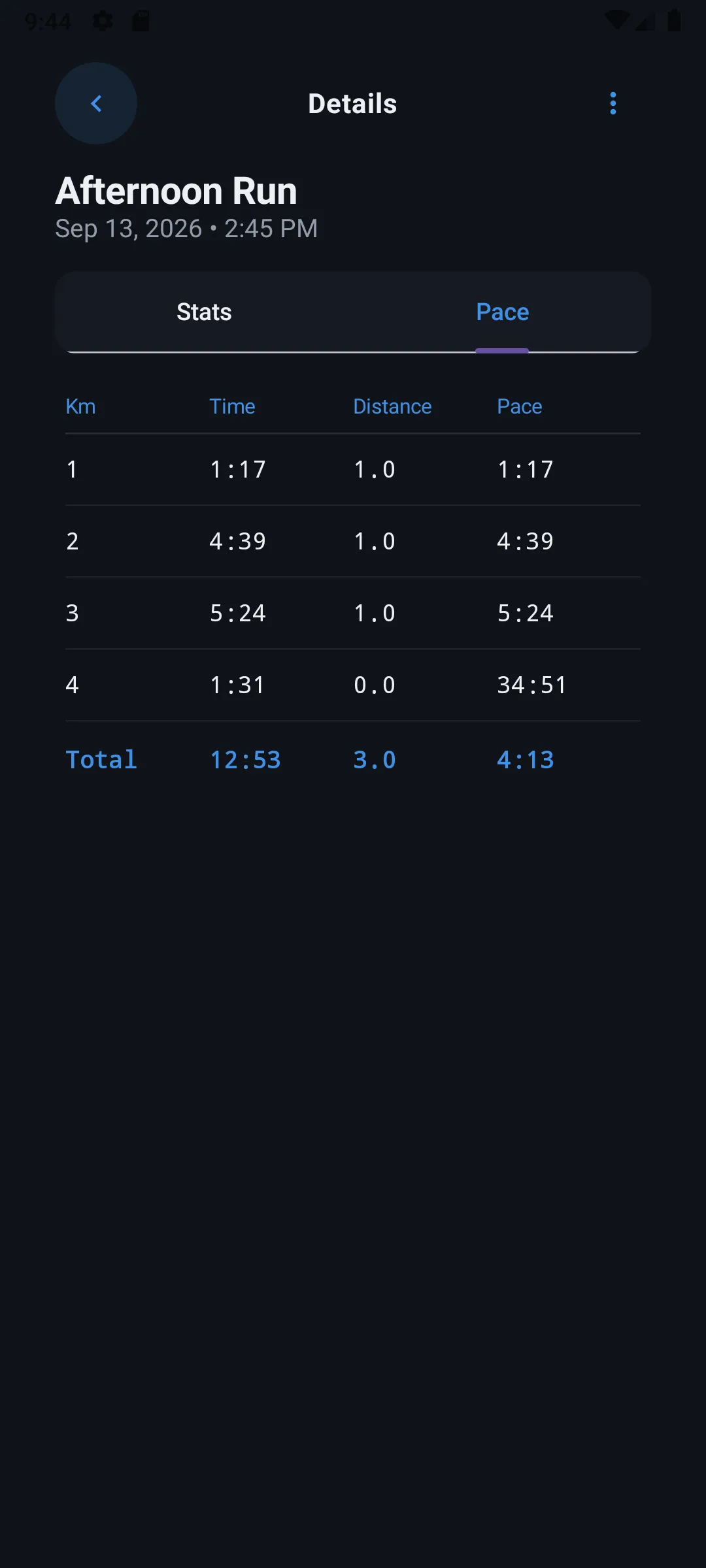
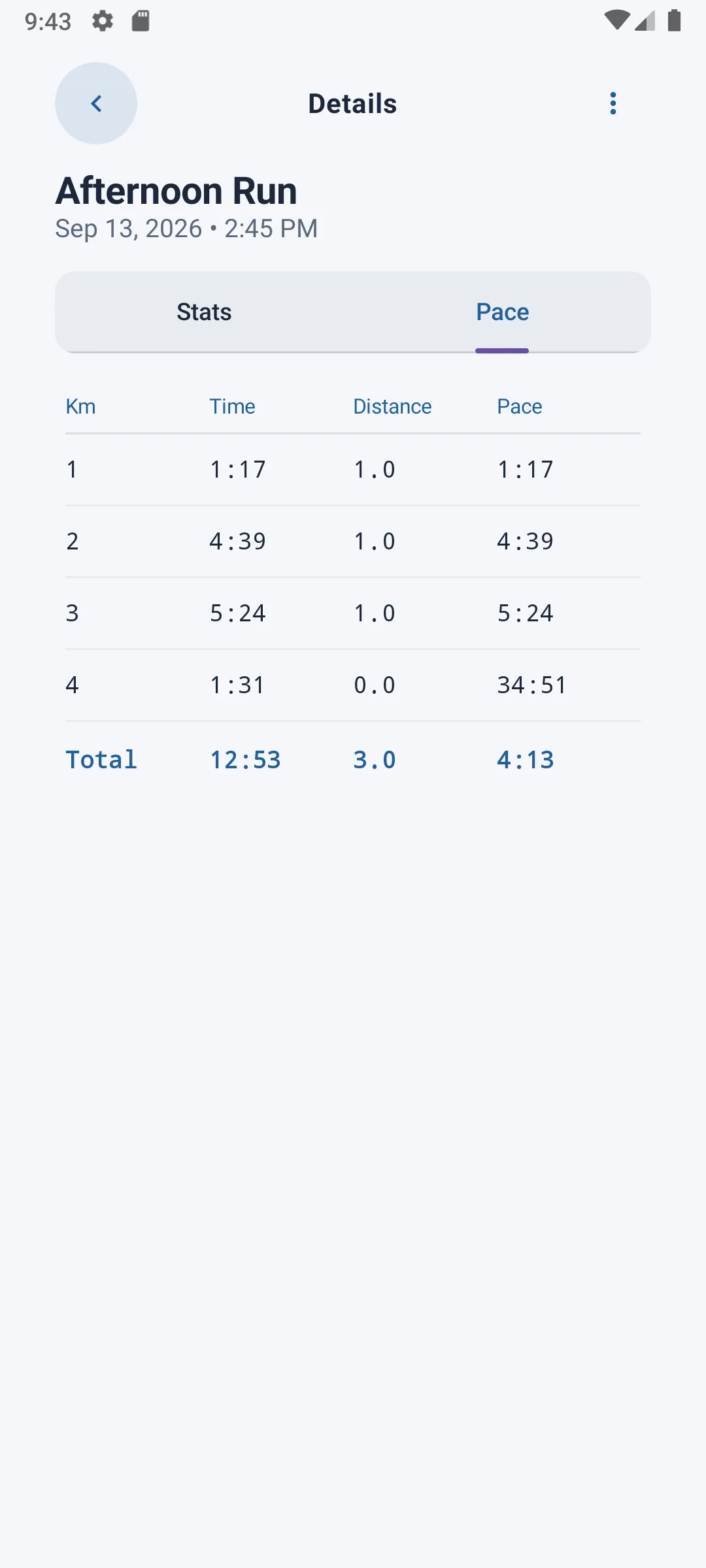
A table breaks down pace kilometer by kilometer: for each km covered, the time, distance, and corresponding pace, with a total row at the bottom.
Actions available on a run
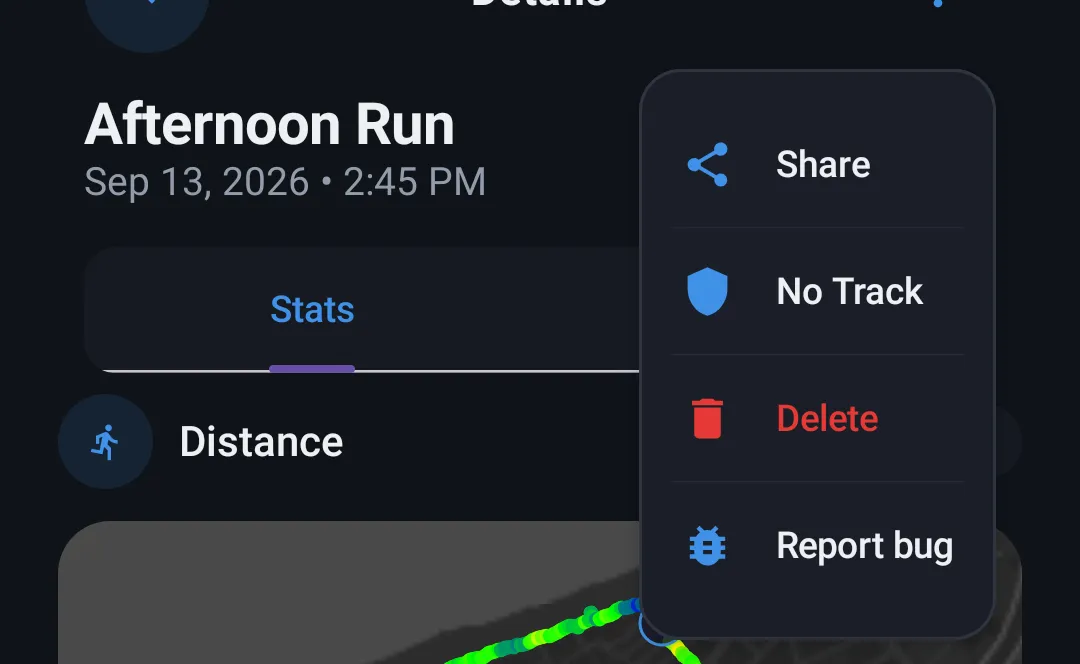
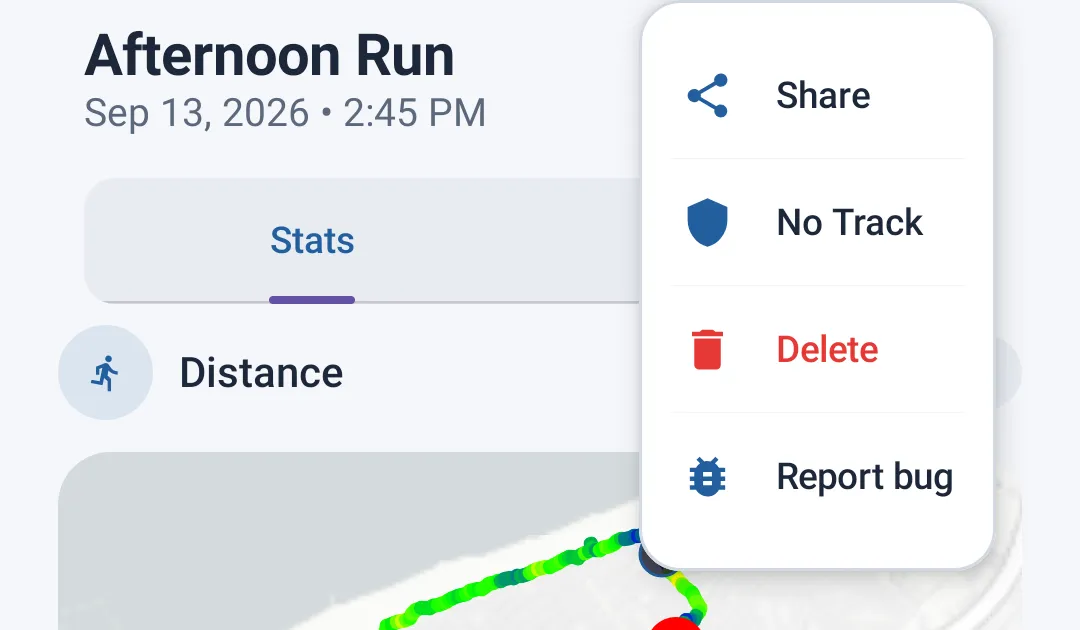
From the detail sheet, three actions are available at the top of the screen:
- Share — generates a summary image of your run (distance, time, pace, route or pace chart) that you can share via any app
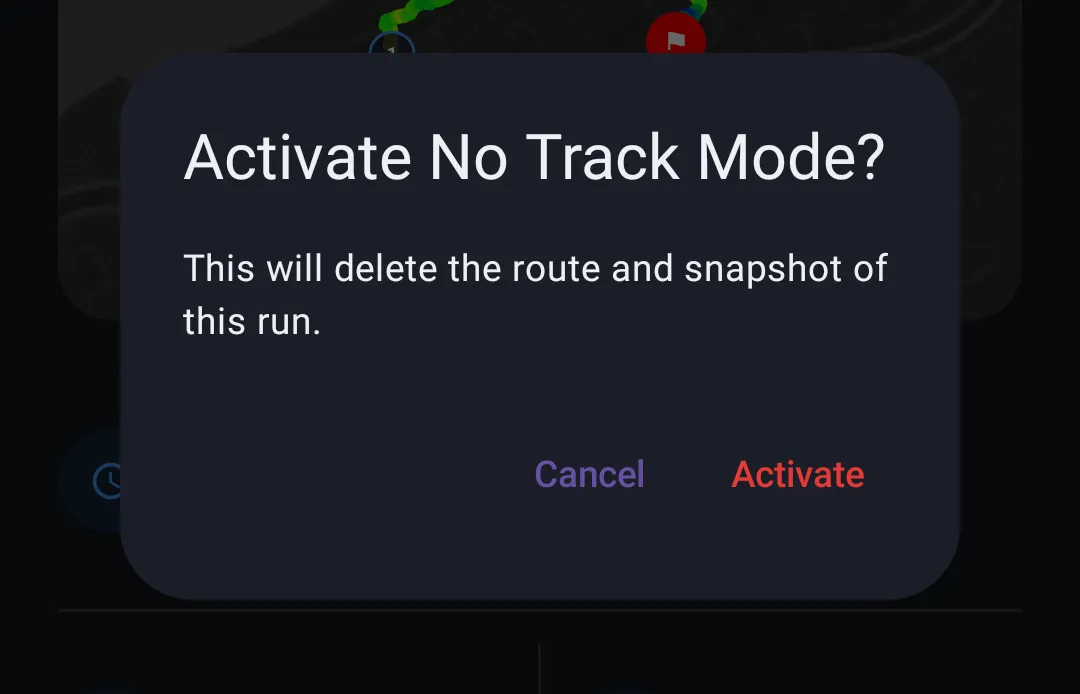
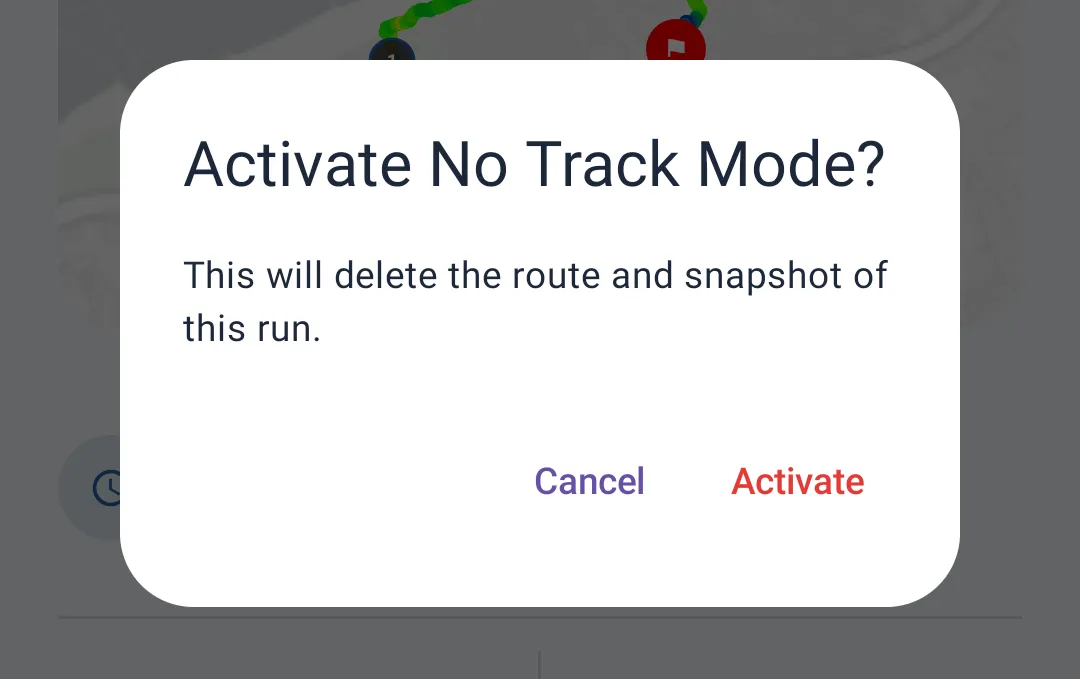
- No Track — deletes the GPS route already recorded for this run, useful if you want to anonymize a run after the fact. Only available if the run still has a route.
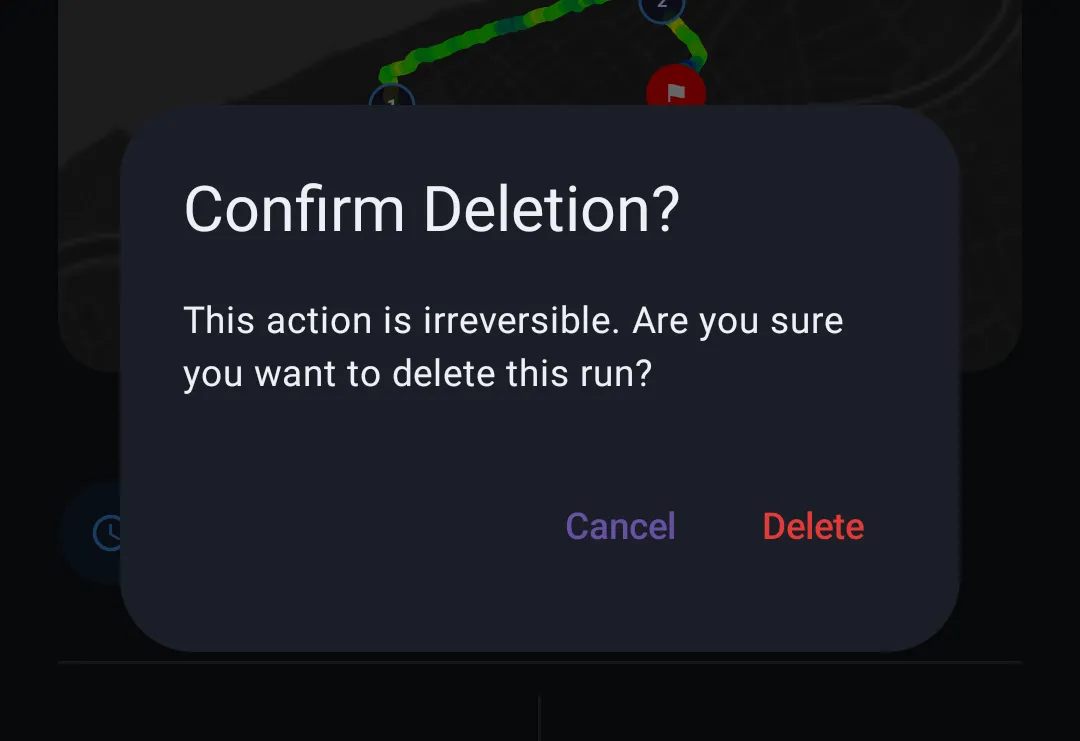
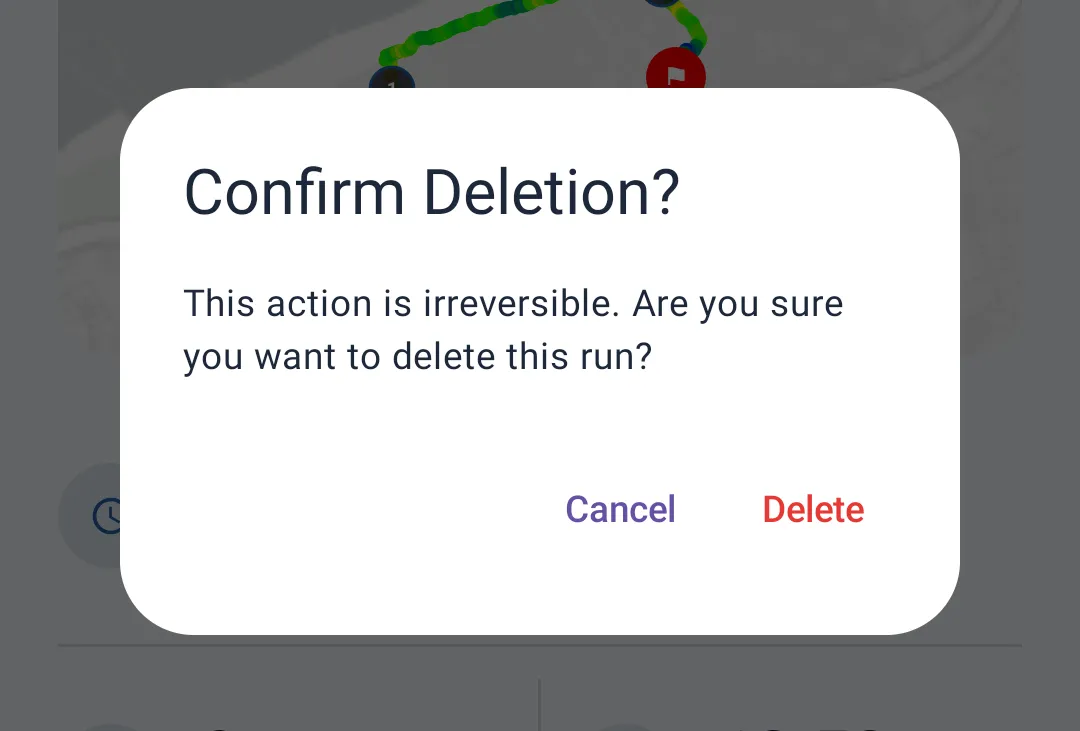
- Delete — permanently deletes the run
No Track and Delete are irreversible. A confirmation is always required before proceeding.
Sharing a run
When you tap Share, the app automatically generates an image containing:
- The route (or an "Indoor Run" label if no route is available, e.g. in No Track mode)
- The total distance
- The time and average pace
- A pace-per-kilometer chart (if available)
A loading indicator is shown while the image is generated. Once ready, your device's standard share sheet opens so you can choose where to send it (messages, social media, etc.).