
Apple Watch
The NoTrackRun app for Apple Watch lets you run and follow your training sessions straight from your wrist, without carrying your iPhone. Like the rest of NoTrackRun, the watch always works in No Track mode: no GPS route is ever stored, only your results.
Before you start
To use NoTrackRun on your wrist, you need:
- An Apple Watch paired with your iPhone (in Apple's Watch app)
- The NoTrackRun app installed on the watch — in the Watch app on your iPhone, go to Available Apps and tap Install next to NoTrackRun
The first time you open the app on your watch, it asks for access to Apple Health (heart rate, distance, workouts). The first time you start a run, it also asks for access to Motion data, used to measure your elevation gain with the watch's barometer. You can refuse, but the related data will then stay empty.
Connect your watch
Your Apple Watch must already be paired with your iPhone (in Apple's Watch app) and have NoTrackRun installed. NoTrackRun doesn't pair the watch itself: it only checks that it's ready and adds it to your devices. The connection takes three steps, from Settings → Manage devices in the iPhone app.
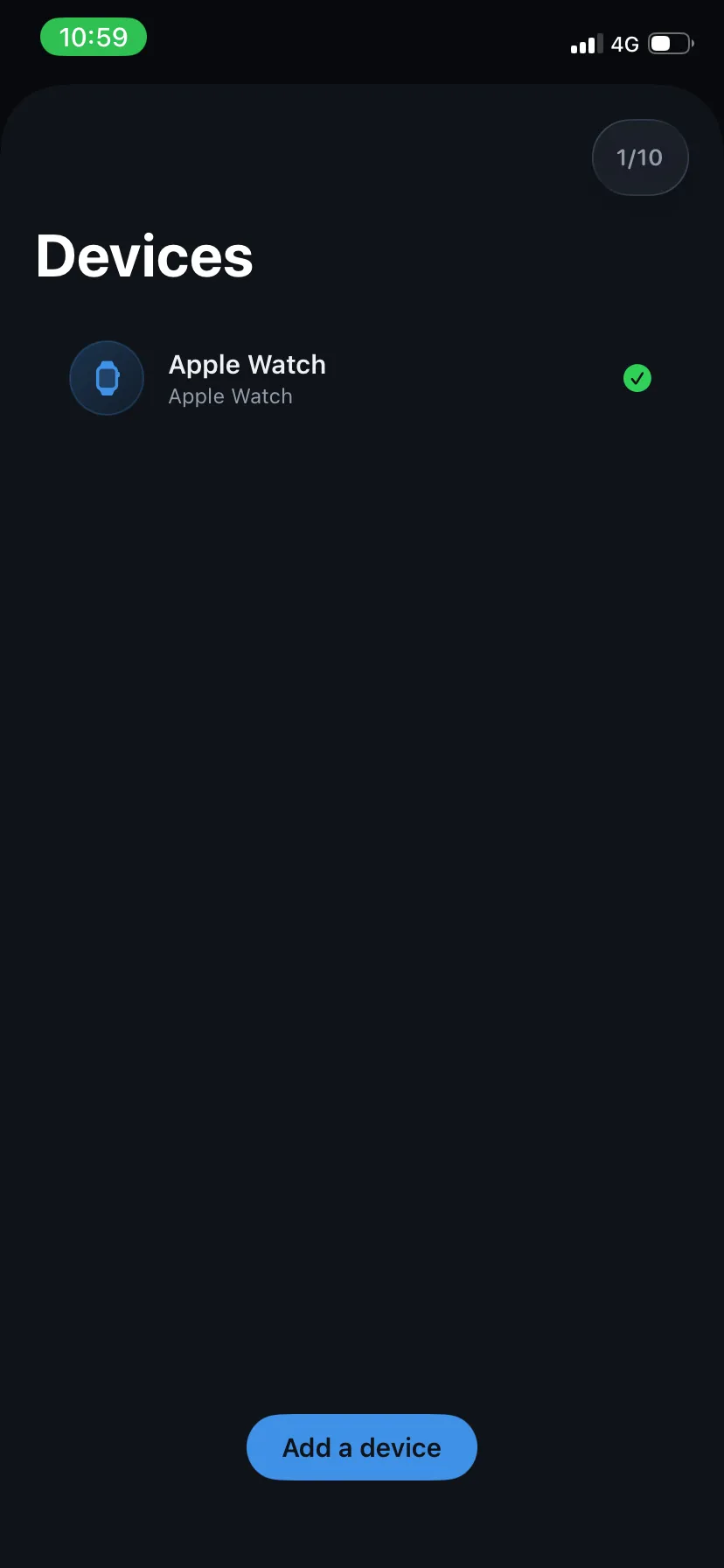
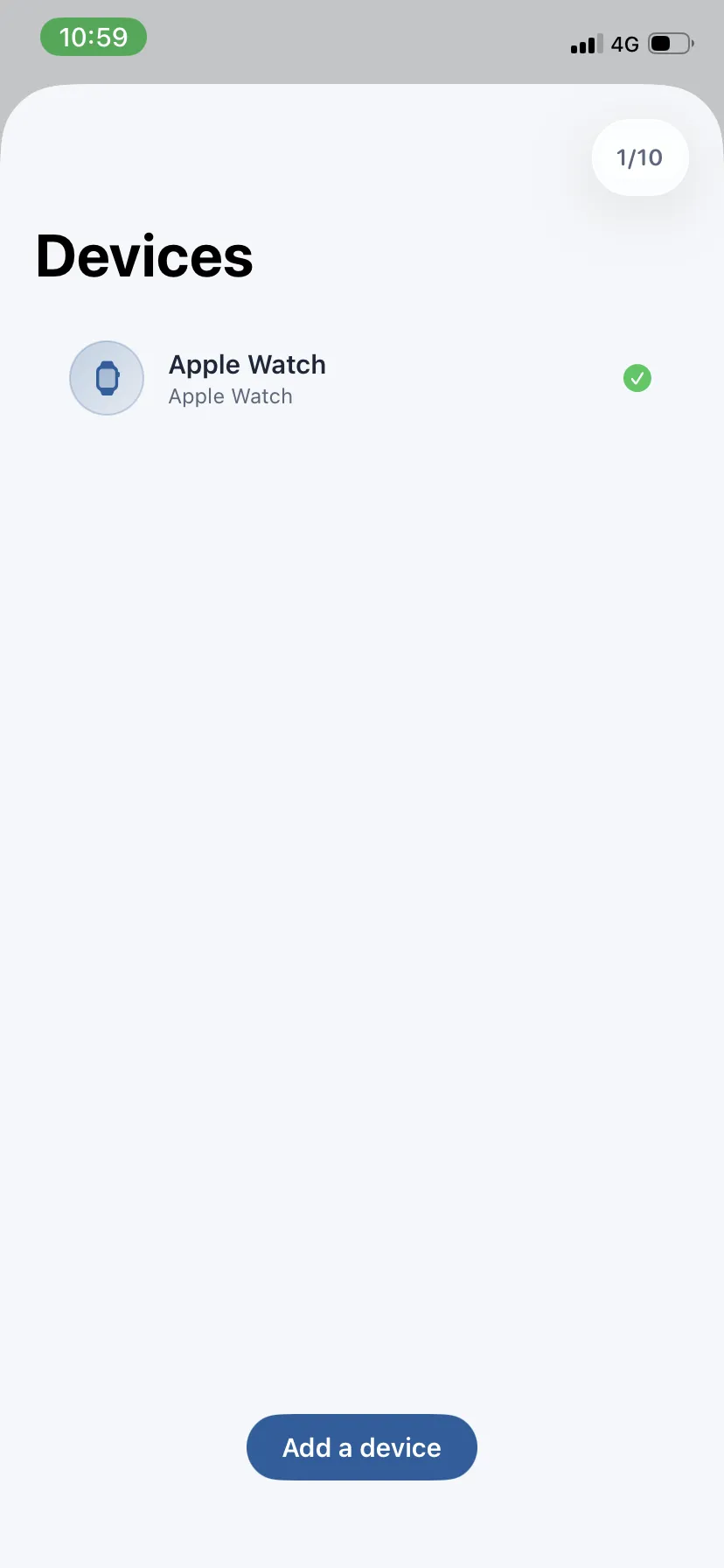
1. Your connected devices
This screen lists the watches already connected, with a counter at the top right (e.g. 1/10). If none is connected yet, it shows No device connected. Tap Add a device to add one. You can connect up to 10 devices: once the limit is reached, the button changes to Limit reached. To remove a watch, swipe left on it and confirm.
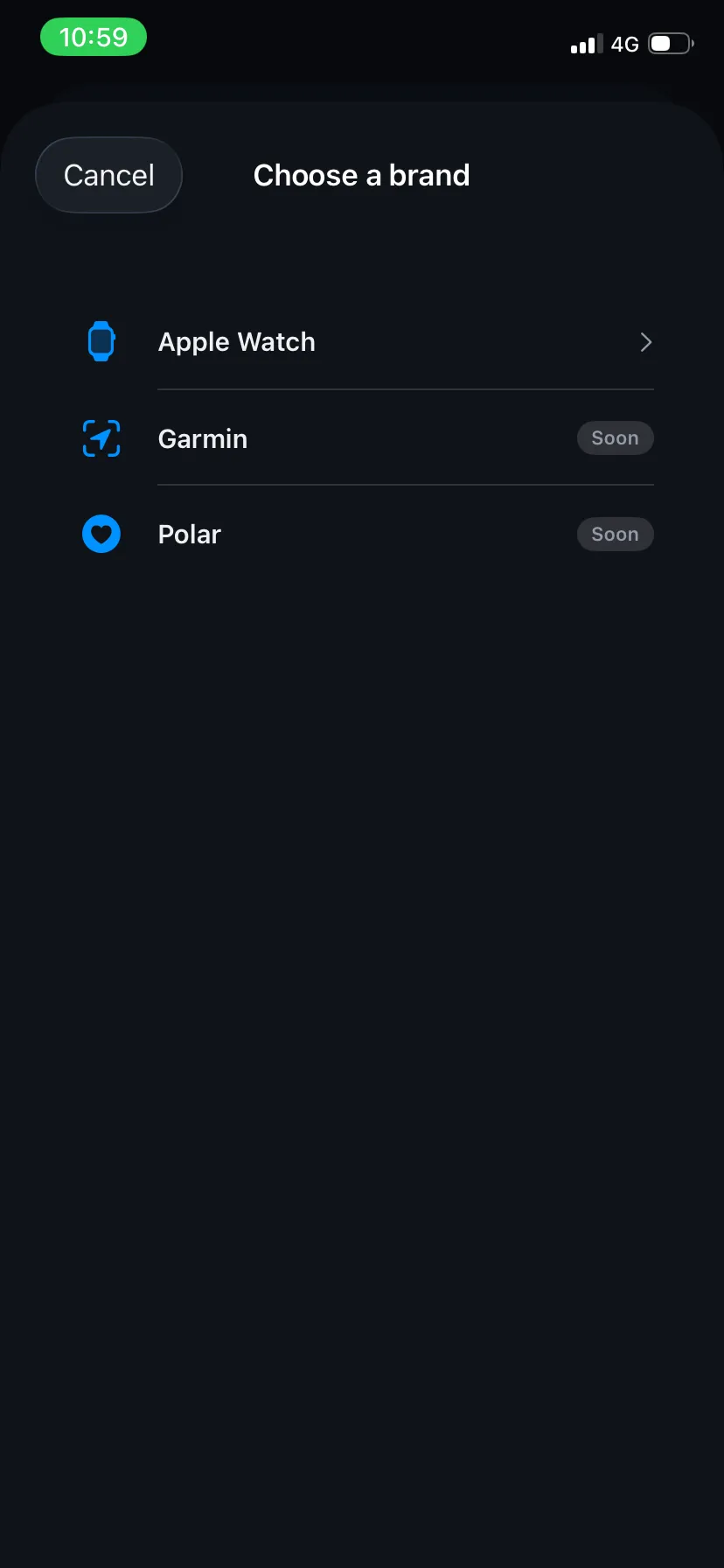
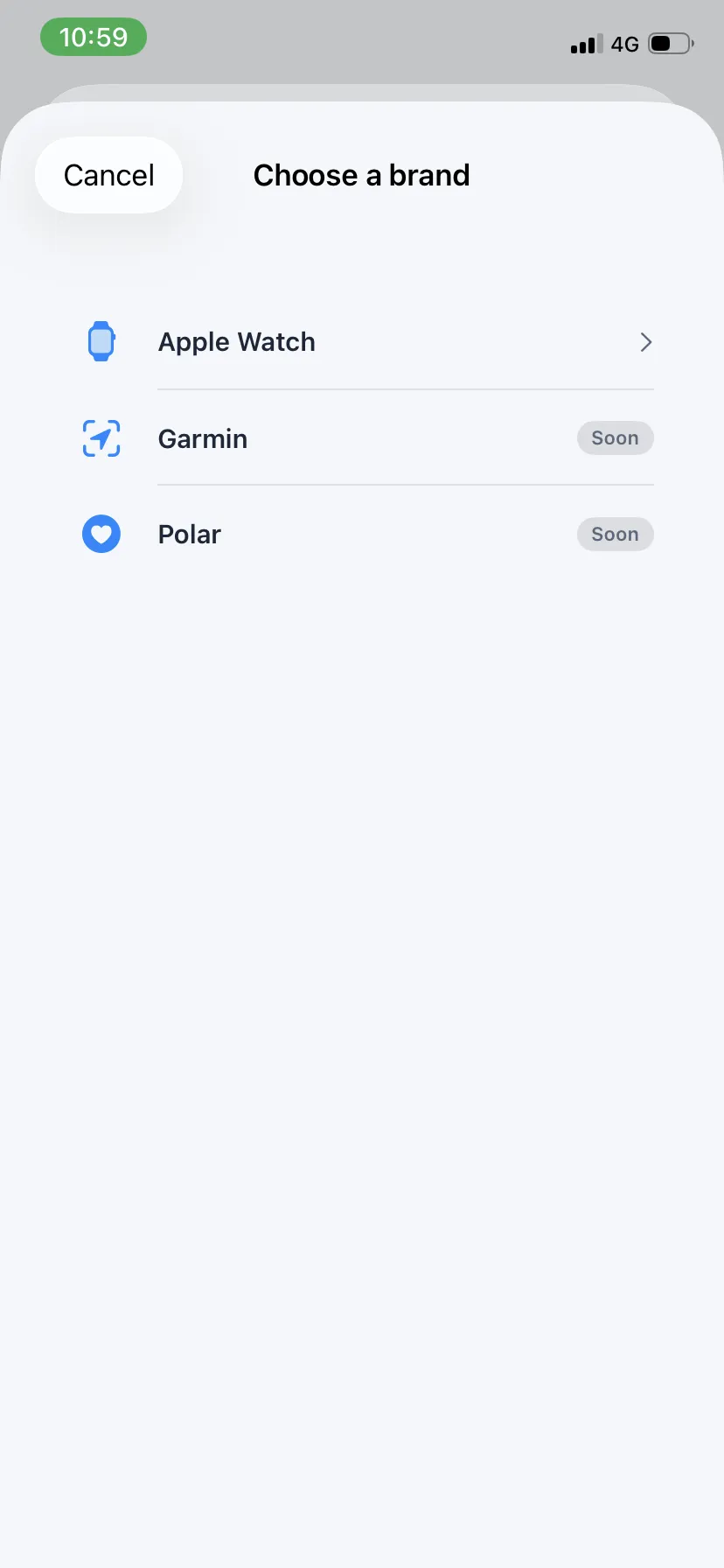
2. Choose a brand
Choose Apple Watch. Garmin and Polar are shown with a Soon badge: their integration is in development and they can't be connected yet.
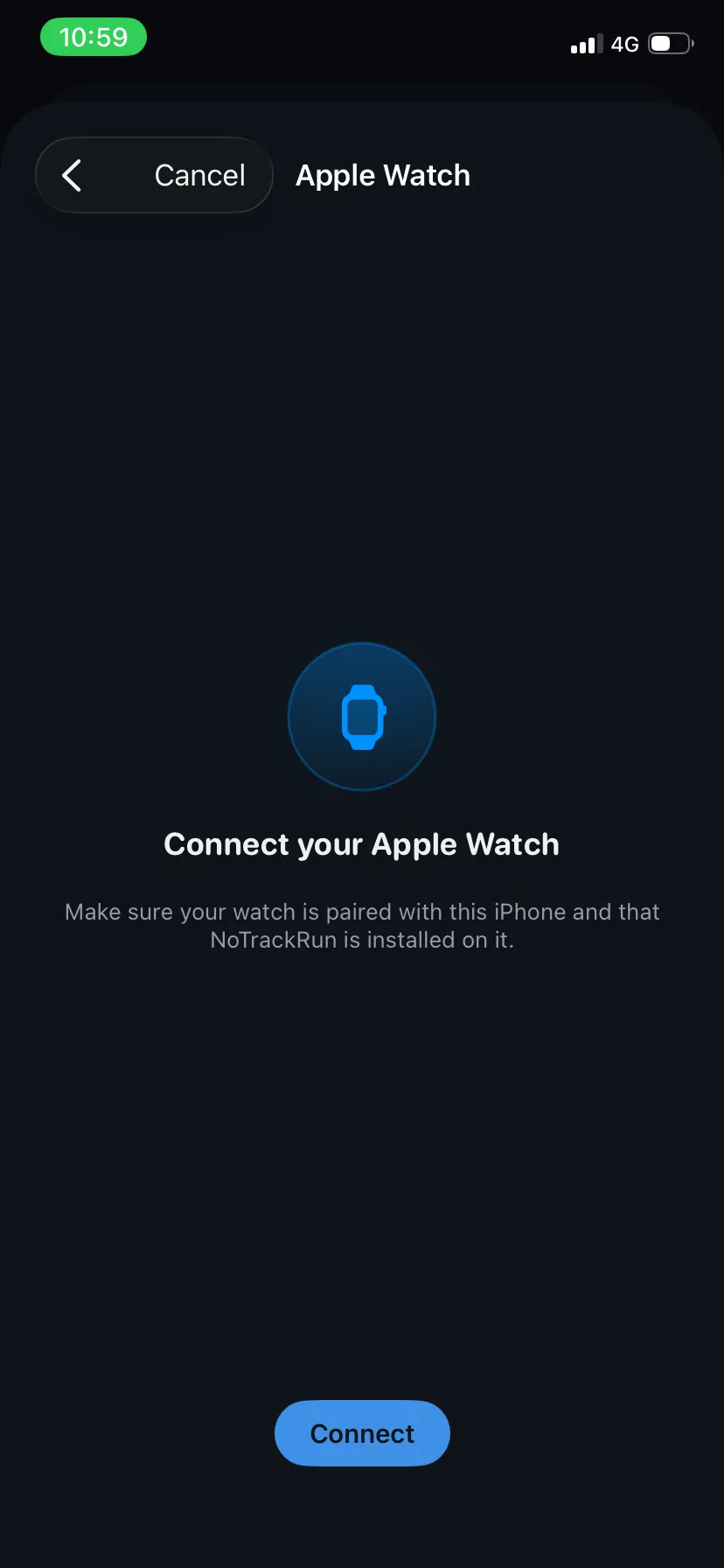
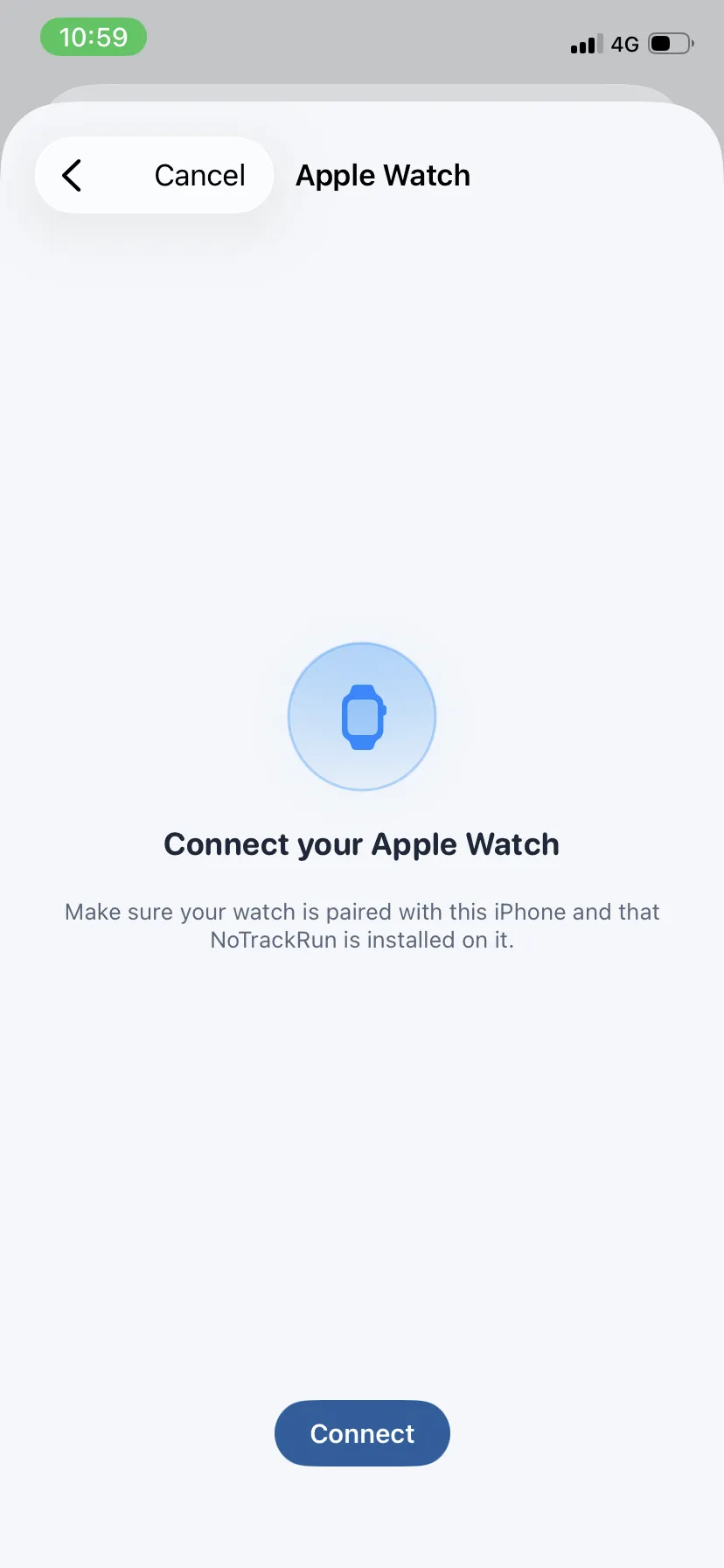
3. Connect your Apple Watch
The app first checks the watch status (Checking watch status…). Once the check is done, tap Connect. If everything is in order, the watch is added to your list and the screen closes. Otherwise, a message explains what's missing:
- No Apple Watch is paired with this iPhone — pair your watch first in Apple's Watch app, then try again
- Install the NoTrackRun app on your watch from the Watch app before continuing — in the Watch app on your iPhone, go to Available Apps and install NoTrackRun
- An Apple Watch is already connected — your watch is already in the list, there's nothing more to do
- WatchConnectivity is not available on this device — this iPhone can't communicate with an Apple Watch
Home screen on the watch
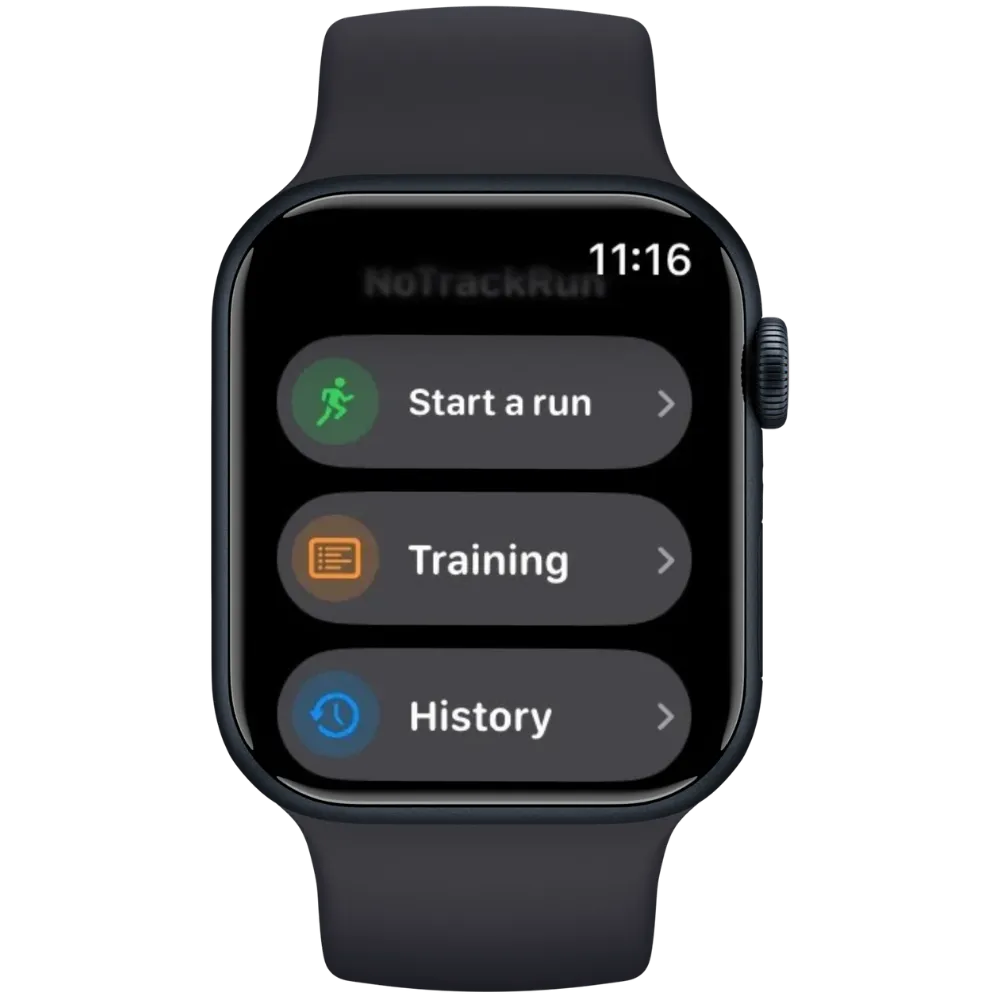
When you open NoTrackRun on your watch, three options are available:
- Start a run — a free run, started directly from the watch
- Training — a training session sent from your iPhone
- History — your runs and trainings done on the watch, and their sync status
Start a run
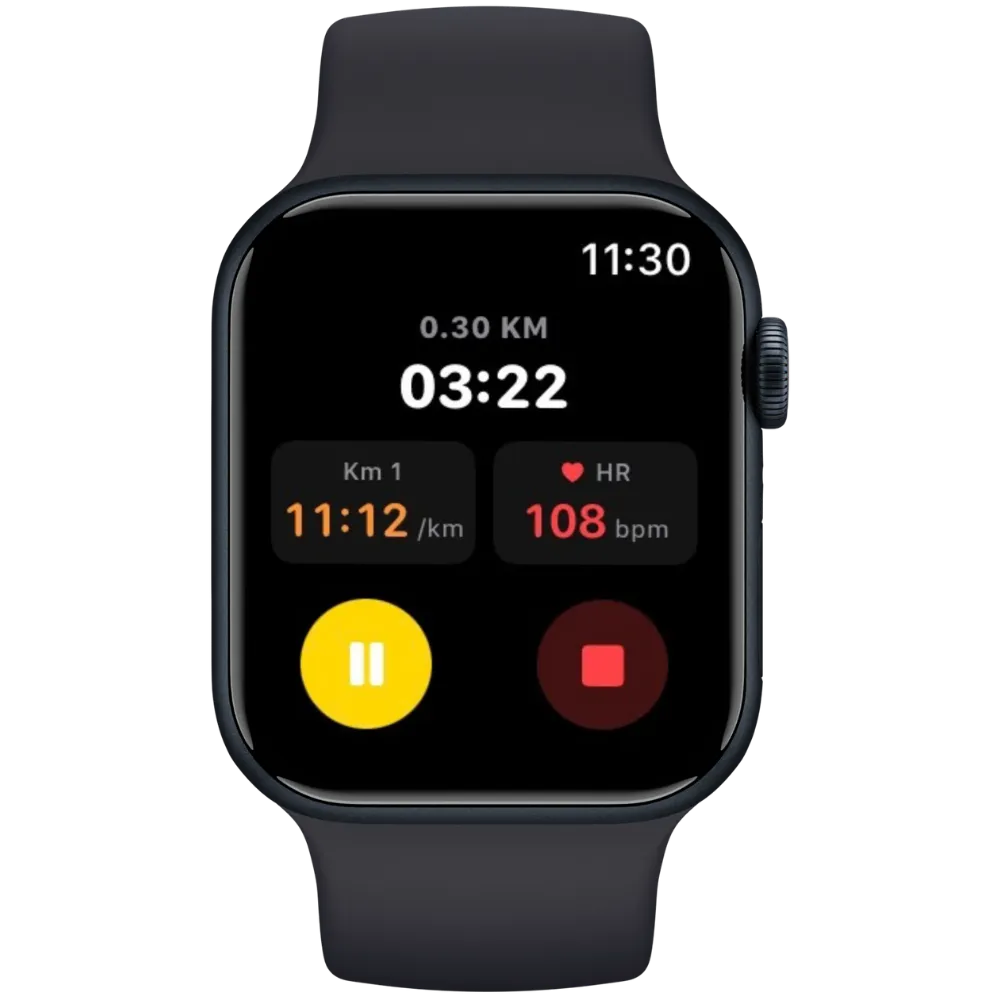
Tap Start a run: the run starts immediately. Everything fits on a single screen:
- Distance covered (at the top)
- Time elapsed (large, in the middle)
- Km N — your average pace over the current kilometer
- HR — your heart rate (shows “--” for the first few seconds, while the watch takes its first reading)
Two buttons at the bottom: Pause / Resume (yellow / green) and Stop (red, with a confirmation). While paused, time, distance and elevation gain are not counted, even if you keep walking.
You can lower your wrist and put the watch to sleep: the run keeps going in the background. When you stop, the run is saved in the watch's History and in Apple Health. Runs shorter than 100 m are considered accidental and are not saved.
Follow a training session
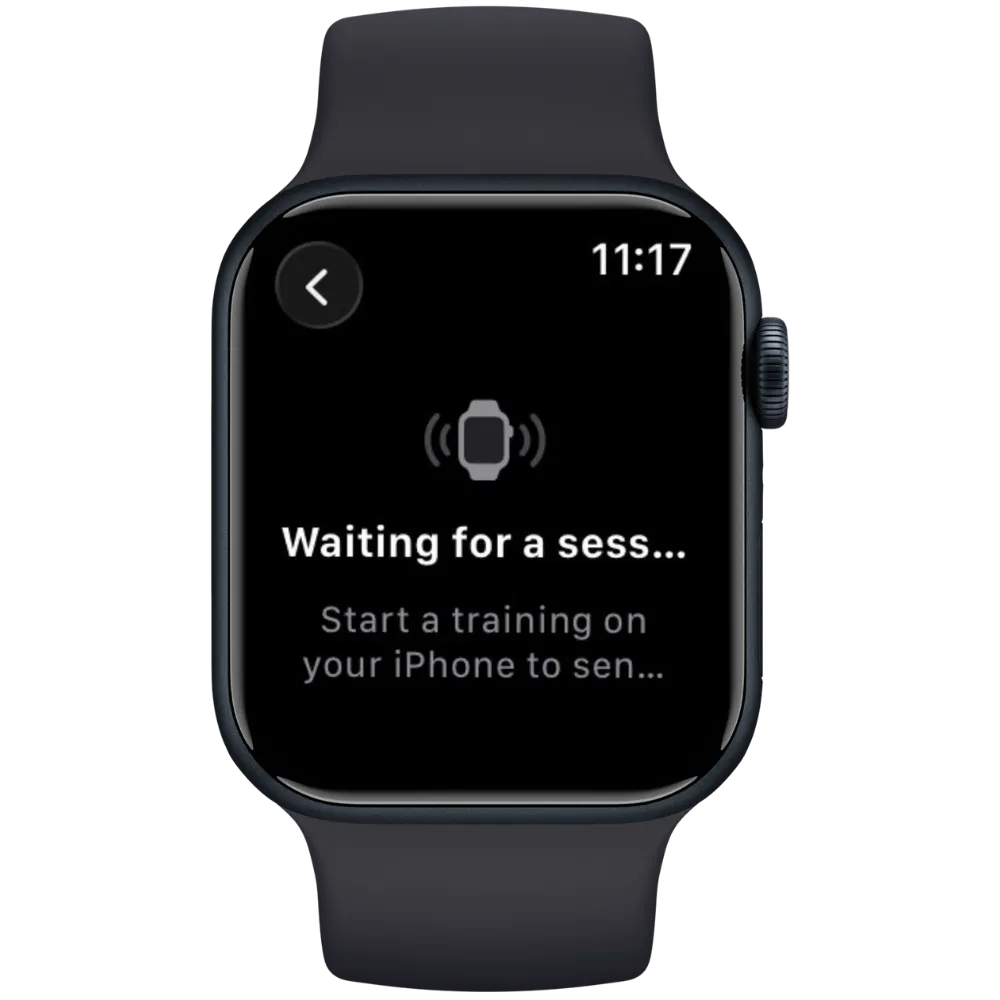
Training sessions are prepared on your iPhone and sent to the watch. As long as no session has been received, the watch shows Waiting for a session. Once it arrives, the watch shows the session name and its number of blocks: tap Play to start.
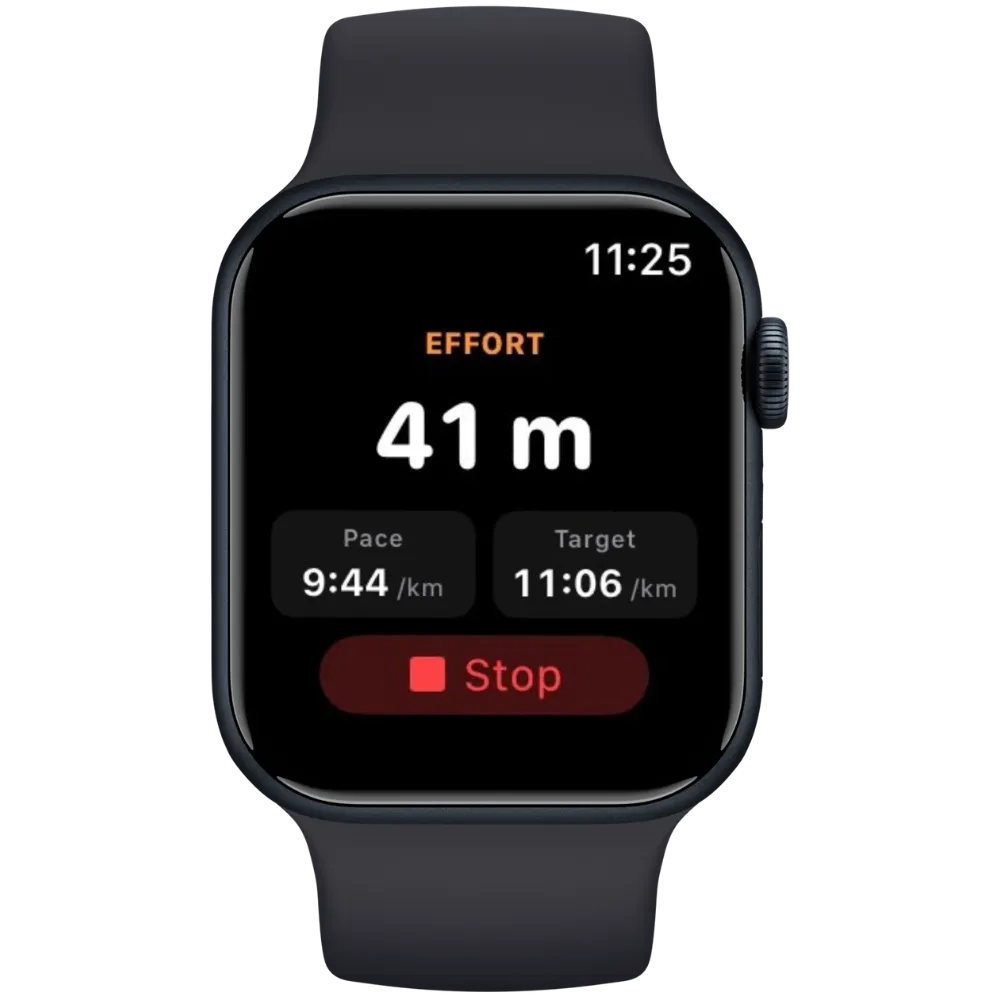
Running blocks show:
- The current phase: Effort (orange) or Recovery (blue)
- The time or distance remaining in the phase
- The repetition counter (e.g. Rep 2/6) for interval blocks
- Your current pace and, if set, the target pace to hold
Phases move on automatically as soon as the target time or distance is reached.
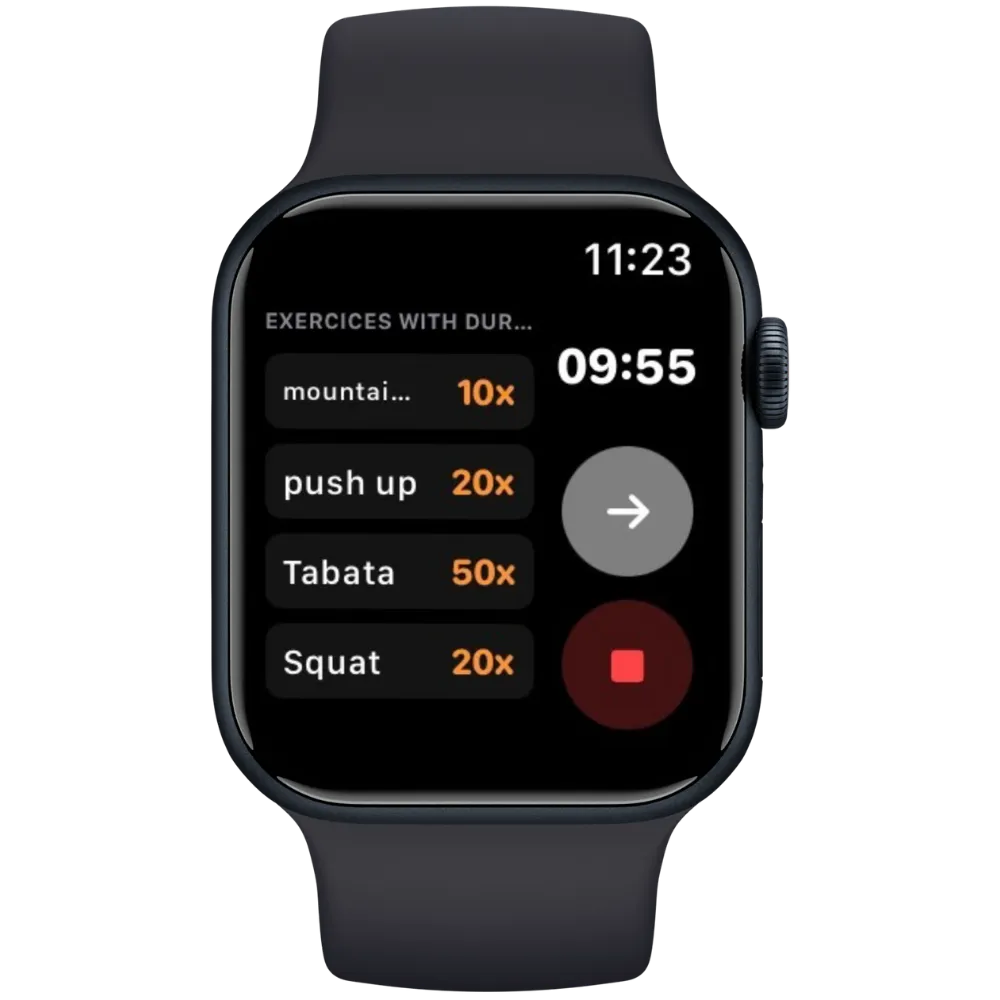
Exercise blocks (conditioning) show the list of exercises with their repetitions, and a timer if the block has one. Tap the arrow button when you're done to move on to the next block. The block also ends on its own when the timer reaches zero.
As on the iPhone, a run is recorded in the background during the whole session. It is automatically paused during exercise blocks, so only your running blocks count toward its distance, time and elevation gain.
End of training and sync
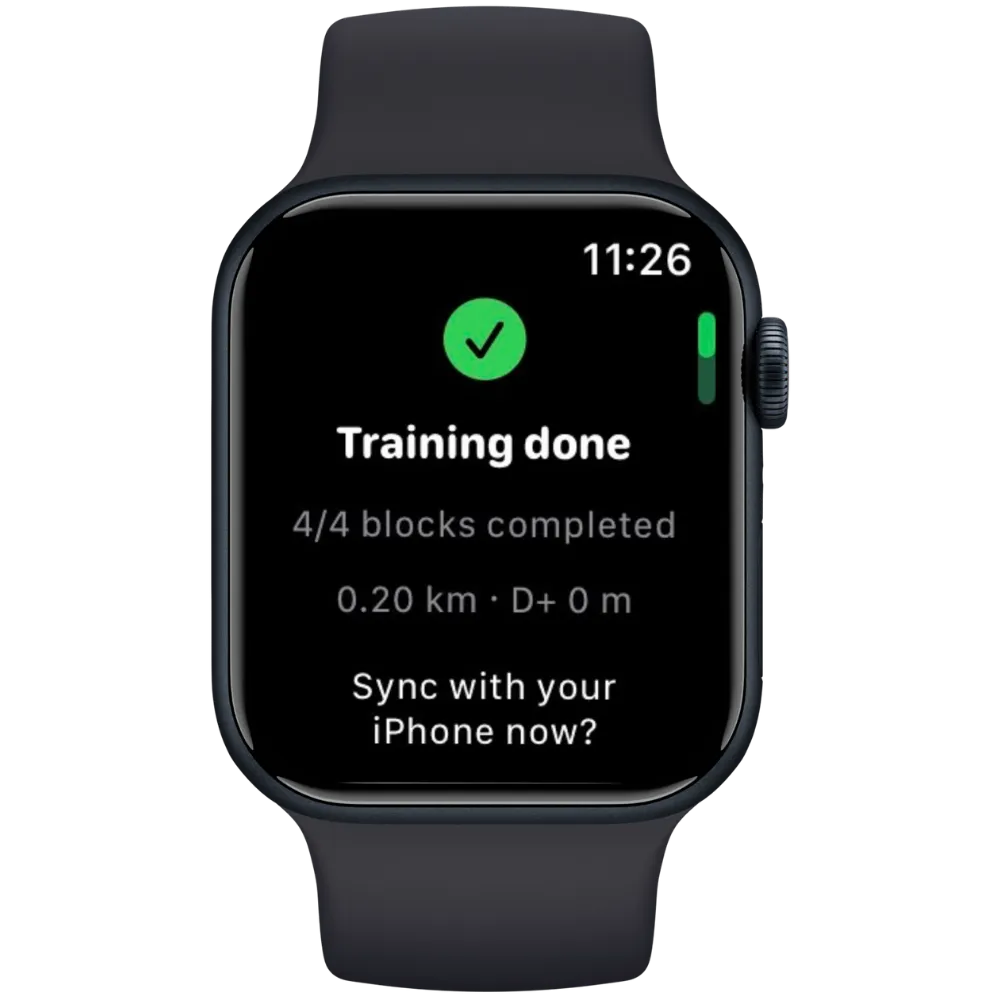
At the end of the session (or if you stop it), a summary shows the number of blocks completed, the distance covered and the elevation gain. The training and its run are already saved on the watch. You then choose:
- Sync now — sends the results and the run to your iPhone
- Later — keeps everything on the watch; you can sync it later from History
If your iPhone is nearby, the transfer is immediate. Otherwise, it is queued and delivered automatically as soon as your iPhone is back in range. If sending fails, a Sync failed screen lets you retry or keep it for later.
History on the watch
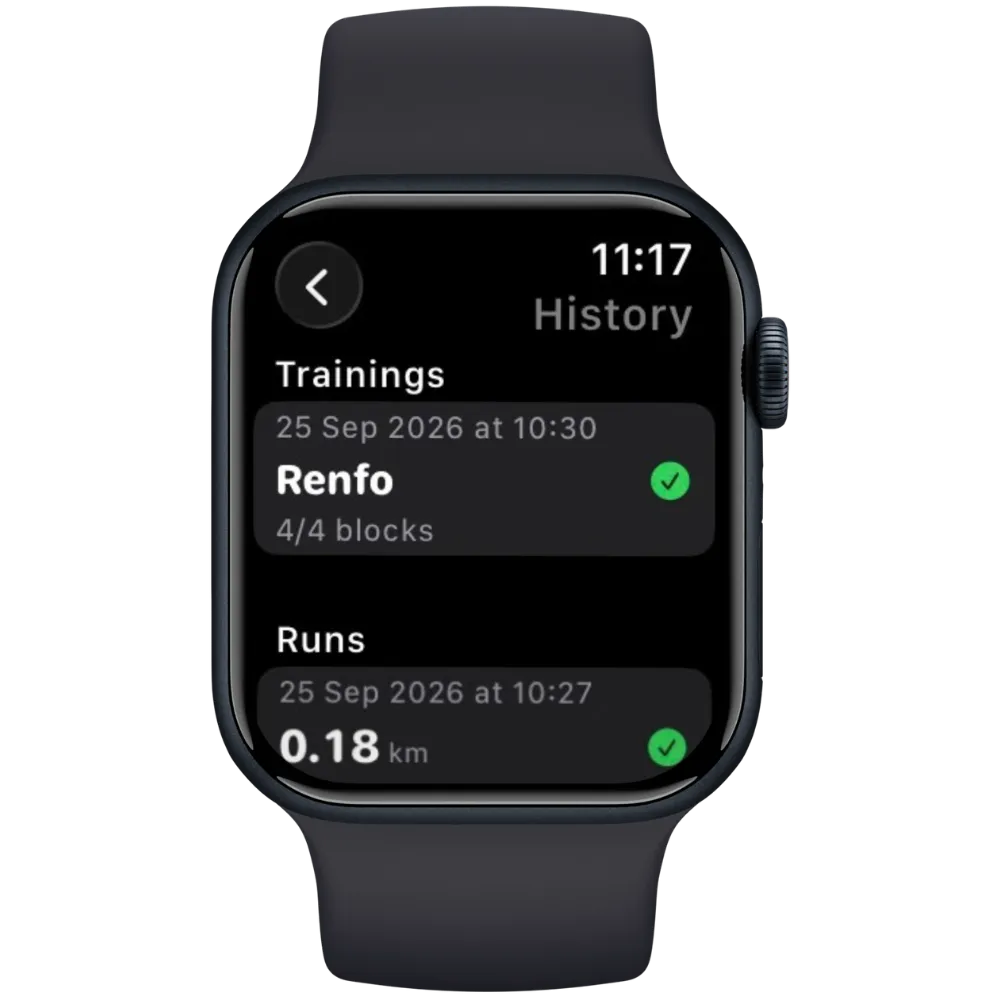
History gathers everything done on the watch, in two sections: Trainings and Runs. An icon shows the status of each item:
- Green check — synced with your iPhone
- Orange crossed-out iPhone — not synced yet
Tap an item to see its details: distance, time, average pace, elevation gain and time per kilometer for a run, and blocks completed plus the stats of the associated run for a training. From there you can:
- Sync it — syncing a training also sends its run if needed. If your iPhone is out of reach, the message Queued tells you it will be sent automatically later
- Delete it — with the button in the detail view, or by swiping left in the list
What happens on the iPhone
Once synced:
- Runs appear in your run history on the iPhone, like any other run, without a map (No Track)
- Training results are attached to the matching session, which is marked as done
- If you follow a plan With Coach, these results are then sent to your coach like the ones recorded on the iPhone
If the same run or training is received twice, the app automatically ignores the duplicate.
Troubleshooting
- The session doesn't show up on the watch — open NoTrackRun on both the watch and the iPhone, and check that Bluetooth is on
- A sync stays “Queued” — bring your iPhone close to the watch and open NoTrackRun on the iPhone: pending items are delivered automatically
- Elevation gain stays at 0 — check that Motion & Fitness access is allowed for NoTrackRun in your watch's privacy settings
- No heart rate or distance — check NoTrackRun's permissions in the Health app on your iPhone